I covered 4 new feature additions to QuickBooks Online on our last QuickBooks Online (QBO) Show. You can listen to the 25 minute archive here. It was just me as Stacy was training for Intuit in some far off state in the US, carrying the heavy weight. Below is a breakdown of the features and screenshots to confirm the workflows. This post will cover what’s new in the QuickBooks Online Projects feature.
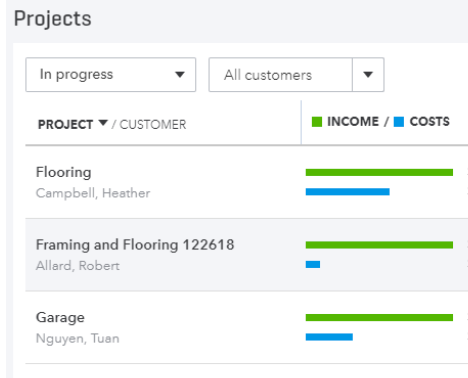
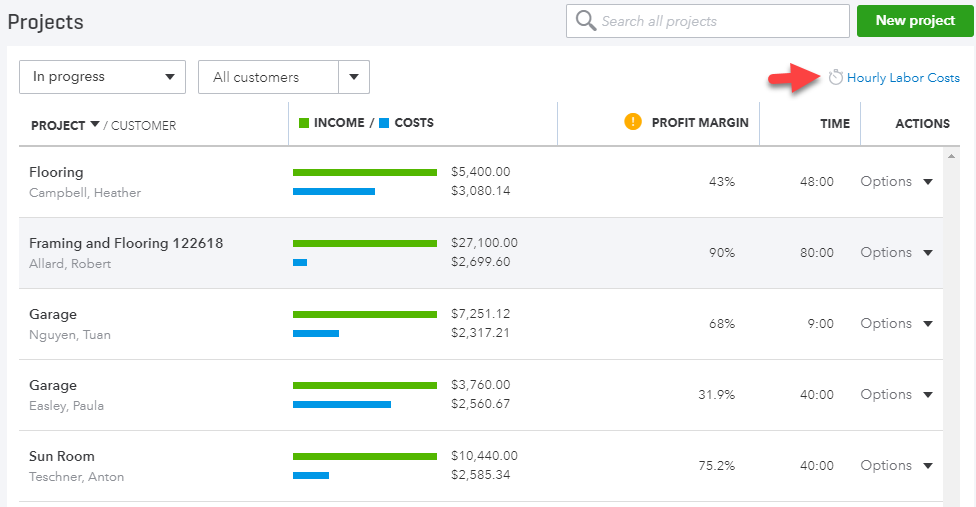
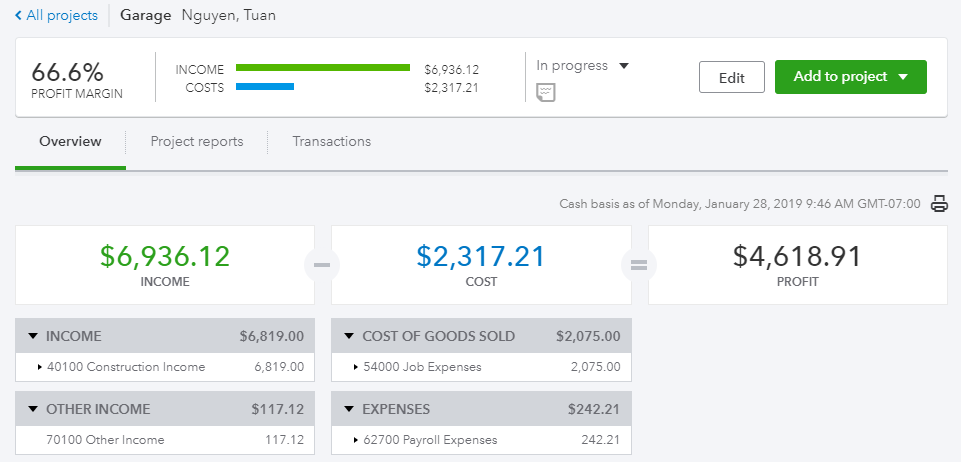
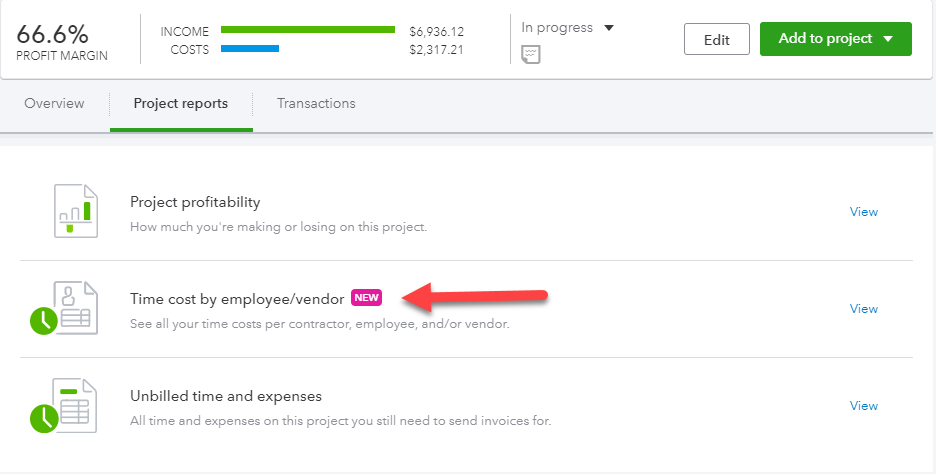
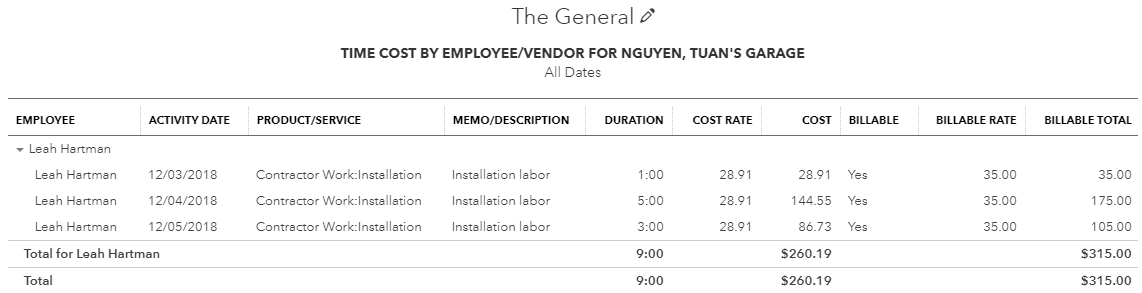
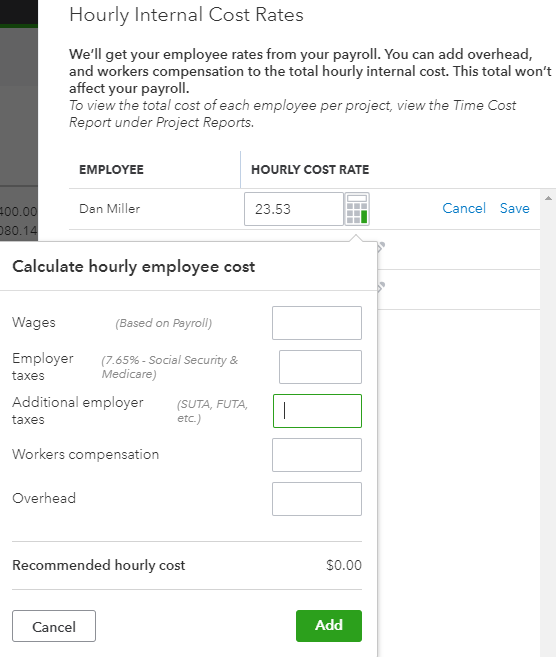
Let’s start with the update to Project Tracking (the QBO Job Costing method) that is coming to a QuickBooks Online (QBO) Plus or Advanced near you. Finally QuickBooks Online (QBO) offering the ability to job cost payroll, without actually adding a Customer/Project field to a paycheck. What? You might ask…How? We will be rolling out shortly (see How to join beta below) an “Hourly Labor Costs” tracking feature as well as a new report, “Time Cost by Employee/Vendor”. Hint: the actual Payroll expense does not get impacted on the P&L till you run payroll, however there is NO customer/project field on the paycheck. Net…Net we give you the visibility. Check out the shots below, they say a lot!
Check out the best, Hourly Labor Costs, you drive this…
Want to join the Project Tracking Beta? Send an email to ProjectsBeta at intuit.com and include the company ID of the client file that wants to have this Projects improvement turned on.
Back from a bit of a summer break, we’re diving right in with a guest blog post. My friend and co-host of QBOShow.com, Woody Adams, has written this piece about automating data entry in QuickBooks Online. there are a variety of options to choose from, and below are a few:
Bank Rules/Auto-add—google vendor upload show result
Invoice automatically for unbilled activity—invoice L1386
Let’s dig in to automating data entry using QuickBooks Online, and thanks so much to Woody for writing this!
First, we all know why we prefer QuickBooks Online Plus over Essentials, right? Need I remind you…
5 Users included (can expand to 25) + 2 Bookkeeper/Accounting Firms + Unlimited Reports Only Users
Class/ Location Tracking
Purchase Orders
Inventory using FIFO valuation/ track profitability with two-sided items
Billable Time/ Expenses, Two-sided items
Budgeting
100 + Reports
Yeah, two-sided items is my sleeper hit, but I just think Plus is most akin to QB Pro, minus a few features still: Labor burden tracking, finance charges, loan manager (LOL), Estimate v Actual reporting, single unit of measure, just thinking of some of the key gaps…still, Plus is the QuickBooks Online most similar in feature set. That being said, QuickBooks Online supports data entry automation in a better way than QB Desktop. While both platforms can Auto-send reports and enter Memorized (Recurring) transactions, this is where QuickBooks desktop ends re automating transaction or form entry. And this is the part of the story that QuickBooks Online continues…
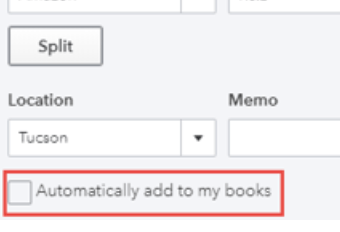
“Automatically add to my books”
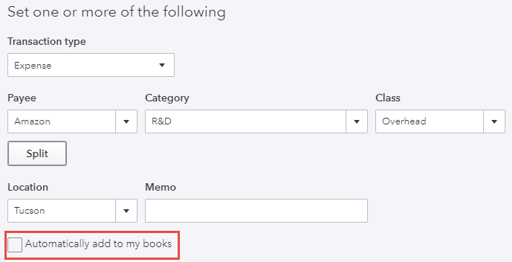
This feature lives inside of a bank rule. It is a tiny checkbox at the bottom of the rule window. The box is NOT default checked and probably for good reason. Imagine the havoc. However, if you are establishing a rule for how a bank feed transaction is to be categorized and the correct Payee is assigned, and you do not need to review the activity, but can just let it dive into the register once the rule is applied, then this feature is your new best friend.
Literally, I kid you not, the downloaded transactions skips the For Review tab and just ends up in the books. You can see the Mode too the bank feed applied when click the blue link at top left of transaction that is NOW in the register…
Invoice Automatically for Unbilled Activity
Quite a mouthful, eh? Even if you are not from Canada…
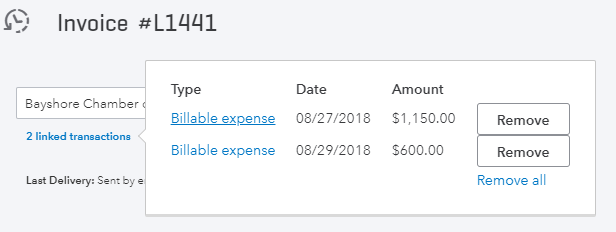
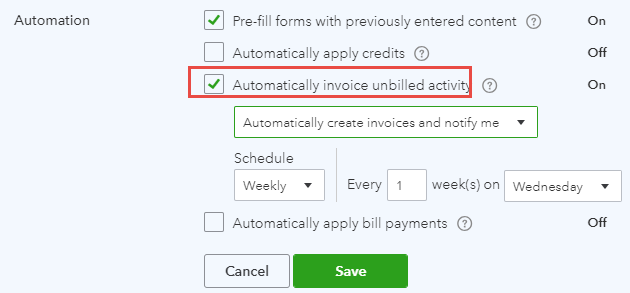
Go to Gear icon, Account and Settings, Advanced tab. You will see this sub-section entitled “Automation”. It’s the 3rd option. See screenshot below. This will enter invoices for any unbilled activity from the following posting or non-posting events: Bills, checks, expenses, time, delayed charges and bank feed transaction (not yet supported at the rule level), assuming the Billable box is checked. QuickBooks Online, like QuickBooks desktop will assume you want to create invoices for the yet to be invoiced time, material, expense, but go one step further…regardless of client, create invoices for all unbilled activity based on the interval you choose. What about Journal Entry you say? There is no Billable box on a JE in QuickBooks Online Plus at this time. Why do I say Plus you ask? Cause Plus is required if you want to tag “TME” to a customer, sub-customer or project (sort a’ new) and is the only QuickBooks Online level that offers making this stuff billable. In QuickBooks desktop it is the Add Time/Costs window on route to the invoice. In QuickBooks Online Plus, it can be invoices automatically created. The below invoice was created while I had that automation feature active…Woody forgot he had all this unbilled activity for this customer once, turned on the feature, the next day an invoice was created that had 150 target lines on it. LOL. I saw the invoice. He emailed it to me because we find that kind of thing hilarious…
Qualification: This is a Global setting, no I don’t meant like overseas. I mean it will create invoices like Jack Bauer would; rogue and coming in heavy guns blazin’. If you require to select what customers get what invoices for what unbilled activity, do NOT turn this feature on. Instead, leverage the next feature that QuickBooks desktop also has but only in part…
Recurring Invoices
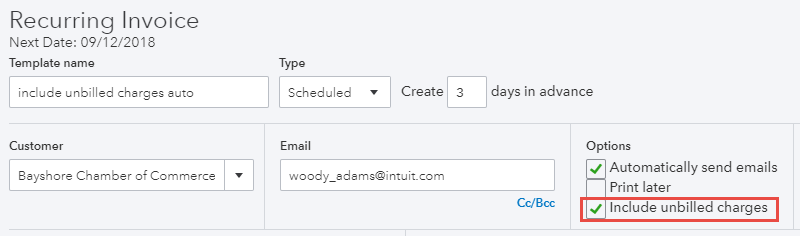
Yes, I know. I been using QuickBooks Online since 2003 and QuickBooks desktop from way before that. I know Desktop has memorized invoices capability. However, when we’re talking about automating data entry using QuickBooks Online, the same recurring invoice feature in QuickBooks Online offers the ability to include unbilled activity. This is great as while I like the more global setting, this feature can focus on a specific customer.
The above recurring invoice template will be created and any unbilled activity tagged to the customer anywhere else in the QuickBooks Online file (bills, checks, expenses, delayed charges, time) will be included. Sweet!
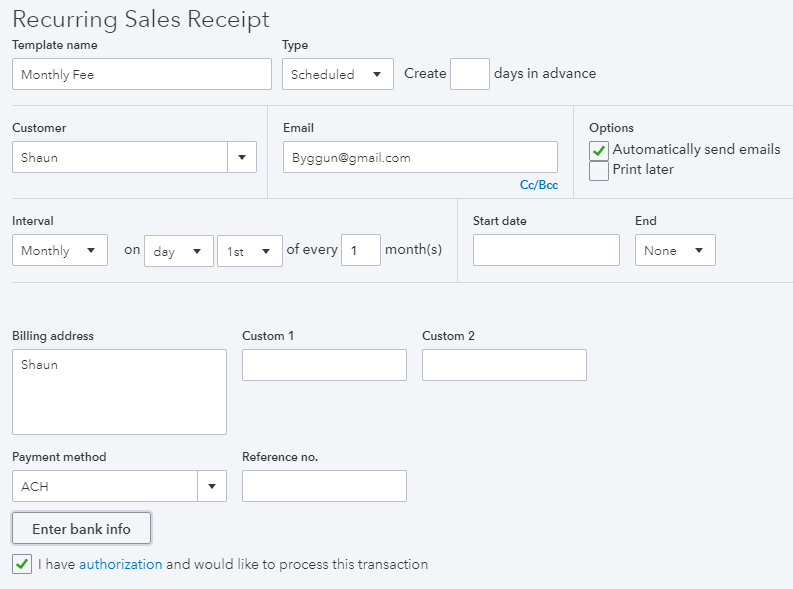
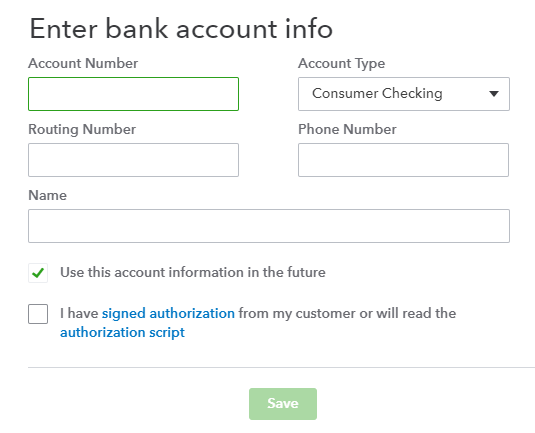
One of the coolest features for automating data entry using QuickBooks Online, period. We do this with most of our subscription billing based clients. In our QuickBooks Online file, we set up a recurring Sales receipt for each client. QB Payments is turned on in Settings. I check the box in the recurring Sales receipt template to auto send to client (input their email address) and I enter their banking/routing numbers in the Payment method field. There is a PCI compliance script you can read to them, a box to check, and then I just leave it alone. Every month the clients gets the emailed receipt, 5 days later I get paid. QB Payments is free and ACH is free so it costs me only the time to set up the recurring transactions for my clients. 5 day funding period might raise a few eyebrows. I have one question to bring them down to a reasonable level: How many days does it take to collect against an open invoice for one of your clients? It’s not 5 days. LOL Maybe you even have to send a drone over to their home or location. As far as you know, Shannon and I have never had to do that…
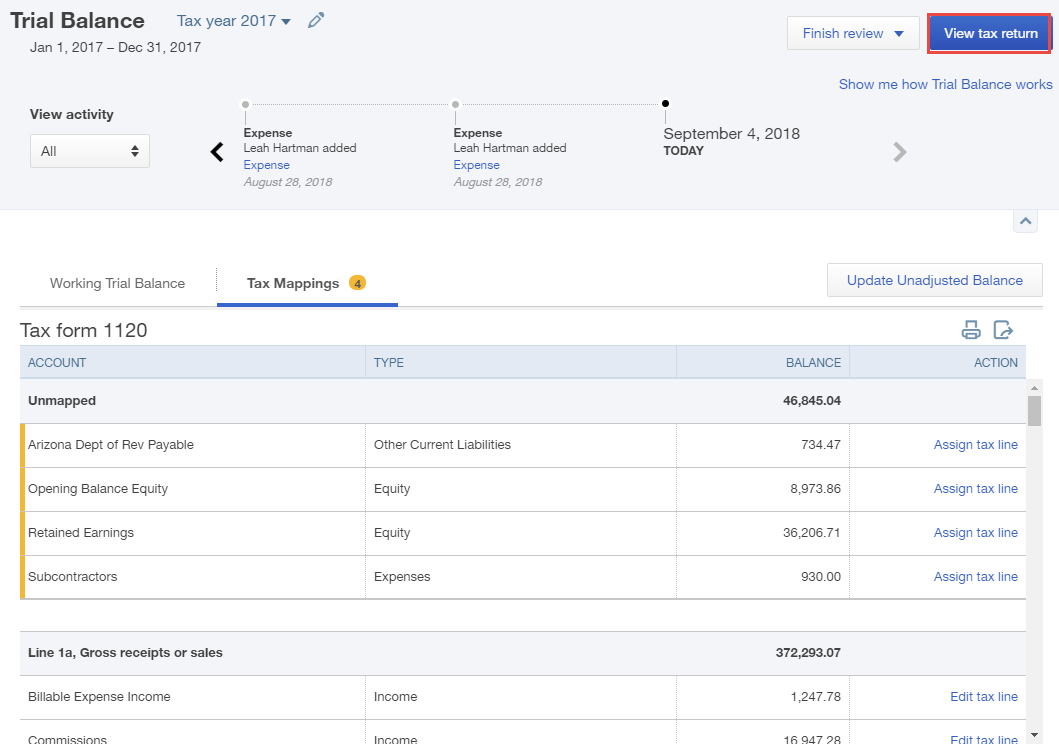
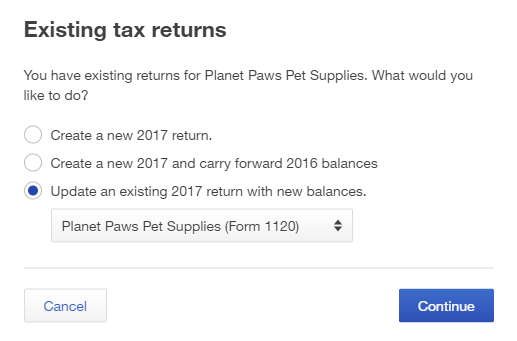
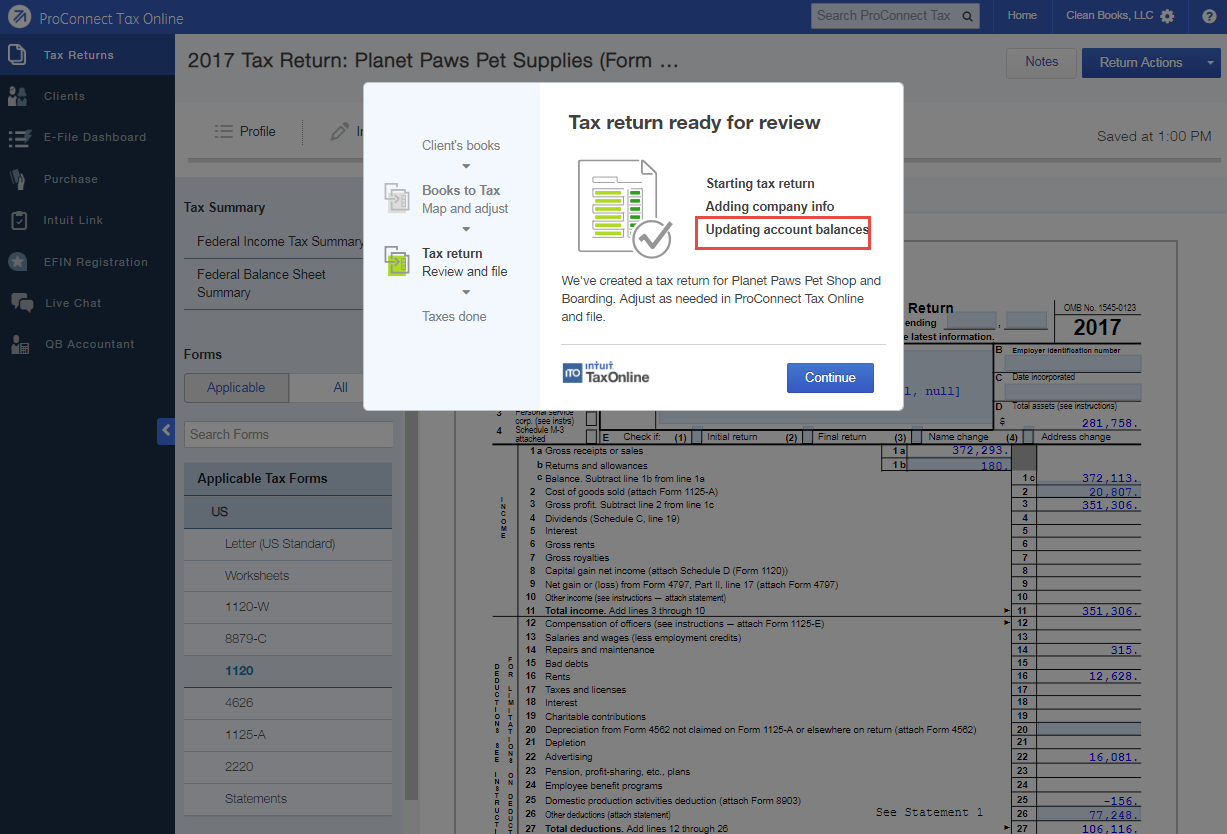
Lastly, automating data entry to the tax return in ProConnect Tax Online. We don’t have any tax clients but I have seen Woody do this in webinars. No, he does not have any tax clients either, but he is a QuickBooks Online nerd just like me and you. And not having to enter data into the data fields in ProConnect Tax Online does qualify as automating data entry.
In the Trial Balance tool under the Accountant Toolbox, when in a client QuickBooks Online file from QuickBooks Online Accountant, you will see Trial Balance. This is not the report but a Working trial balance that also is the launch pad for the native integration we know have with ProConnect Tax Online. Pictures worth 15 or 16 words…
By the way, all the above functionality that automates data entry is in QuickBooks Online as it is, with no other apps required. Of course there are several great data fetching apps that help with Automating Data Entry Using QuickBooks Online. Ask me about them someday!
Comparing QuickBooks Online Plus Feature Set: Parity with QuickBooks Pro
To what QuickBooks Desktop product are you really comparing QuickBooks Online? This is an important question to ask yourself if you really prefer QuickBooks Desktop for your clients over QuickBooks Online. Having presented QuickBooks Online and QuickBooks Desktop to thousands of firms since early 2009, I can say when it comes to QuickBooks Online distaste from an accountant’s point of view, it is mostly about lack of parity in report customization and click-thru workflow.
There are gaps in report customization in QuickBooks Online, for sure, as well, some workflow cumbersomeness; too many clicks to get to same result in QuickBooks Desktop , tabbed browsing vs open windows, etc. However, your clients, for the most part, do not care about that. Accountants are using QuickBooks Accountant Edition to work with their client QuickBooks Pro files, and QuickBooks Accountant Edition is a Premier level desktop program.
My contention is that many of your clients don’t need build assemblies, job costing, manufacture in process, sales order fulfillment as a critical feature set. Again, what QuickBooks Desktop product is your greener grass than QuickBooks Online? If most of your desktop clients are using Pro, then QuickBooks Online Plus already is on par with their current experience. That is right, apples to apples, outside of YOUR reporting and workflow preferences of QuickBooks Desktop , that your client DOES NOT consider as critical to QuickBooks Online adoption, QuickBooks Online Plus is already, save for 1 feature, on par with the QuickBooks pro feature set. Oh, I am sure there are a few other features I will not address below that is in Pro yet still not in QuickBooks Online, but again, only a few of your clients actually use Loan Manager, LOL…You see what I mean? What actual QuickBooks Desktop product are you clinging to in comparing to QuickBooks Online? If it is Premier or Enterprise Solutions, then we are asking the wrong question. Your client is using Pro. They can adopt QuickBooks Online. Even if you do not want them to, they can, and you can stop with the age old file transfer model that is just the very definition of cumbersome…
Let’s take a look at the key QuickBooks Pro features that your product and service based business clients are going to want in QuickBooks Online, and run thru a few of the key settings to turn them on in QuickBooks Online Plus.
My feature set parity is really about comparing QuickBooks Online Plus vs QuickBooks Pro, and while some features below will also be in Essentials, my apple to apple is Plus v Pro. And the two features I mention above still not in QuickBooks Online that I consider critical and awesome in QuickBooks Pro is Estimate vs Actual reporting and the Markup column on Estimate. Pro just does that getting out of bed in the morning, where you will see below, QuickBooks Online Plus requires a lot of extra steps to get to the same result. But even without a 3rd party app, it can be done. For me, the question of comparing QuickBooks Online to QuickBooks Desktop is not about my wants and preferences/bias, and more about mobility and collaboration. Does your client want to be mobile more than the ability to use Loan manager? Don’t keep them on QuickBooks Desktop just cause it is your comfort zone. For whom are you really solving?
What are you comparing QuickBooks Online to? For whom are you really solving?
By the way, QuickBooks Pro does not support Build assemblies, customer price levels per item, multiple unit of measure conversion, WIP reporting, sale order workflow either. What QuickBooks Desktop product are you comparing QuickBooks Online to again? Ok, Ok, I will stop…
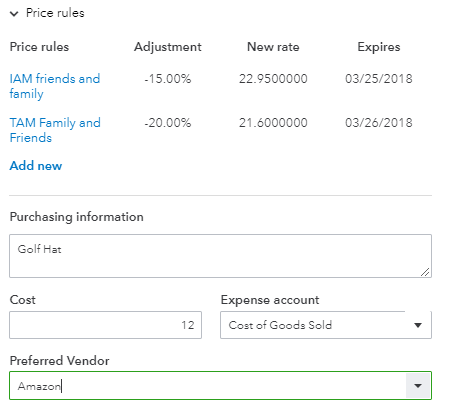
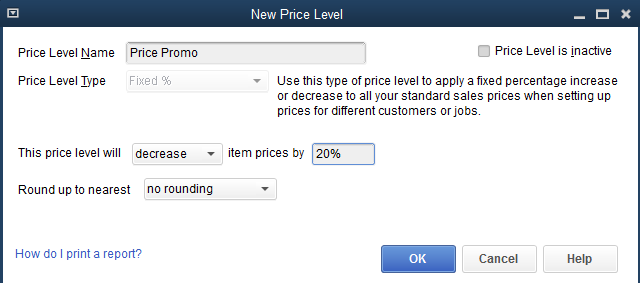
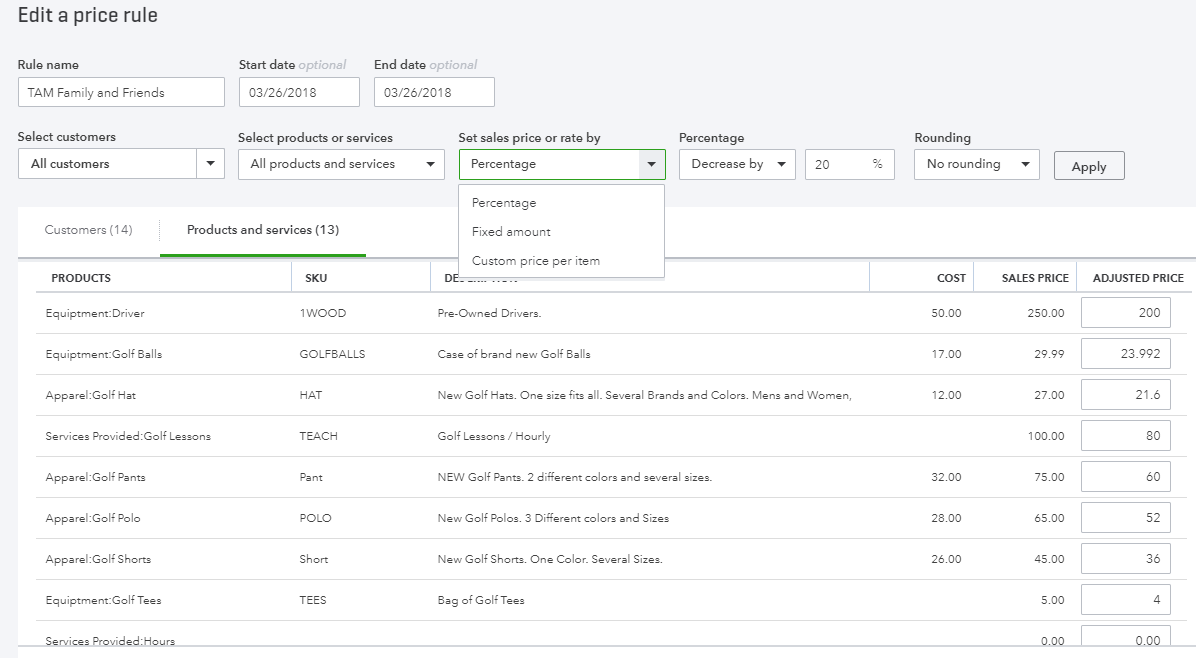
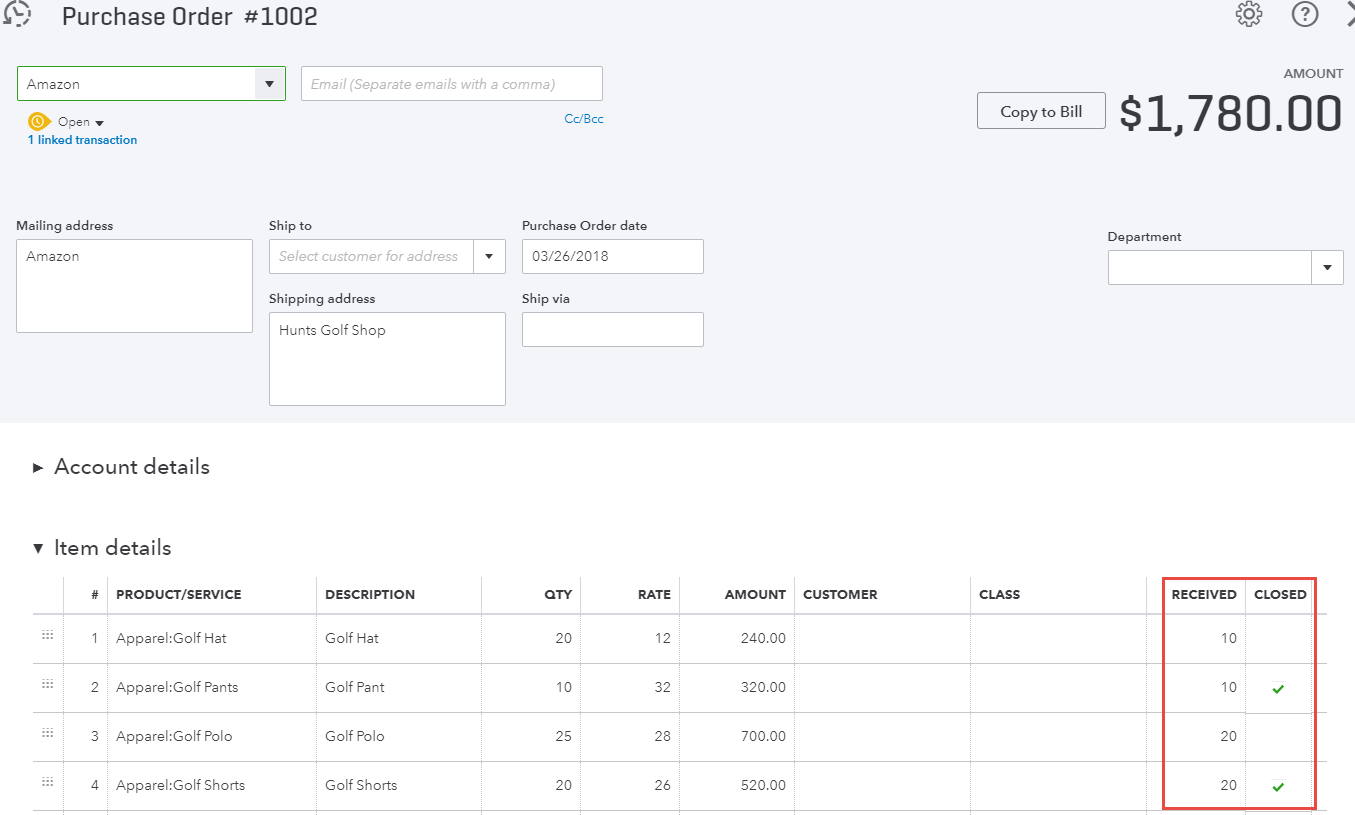
Gear icon/Account and Settings. From the screenshots below, there are two features that need to be turned on else you will think QuickBooks Online does not support these Pro features. Namely, Price Rules (Price levels and still in beta) and Inventory (FIFO, not average cost). Price Rules in Essentials and Plus are more akin to Premier level Price levels, in that I can create custom prices for items. One better, I can even set a date range for the rule to apply. Pro price levels support not date ranges and are only a Fixed %. Neither product supports price level reporting. QuickBooks Pro inventory items are 3 sided, so it is in QuickBooks Online Plus. Inventory asset, revenue and COGS are hit, and cogs is debited when the item is sold, just like in QuickBooks Desktop . QuickBooks Online Plus supports inventory adjustments, while the “starting” value adjustment is intended as a one-time adjustment, where in Pro you can make ongoing cost or value adjustments. I like that in Pro. Pro supports partial receiving against purchase orders, so does QuickBooks Online Plus. Pro does handle single units of measure, Plus does not. But multiple unit of measure conversion is a Premier/ES thing, as is assemblies and sales order fulfilment. Pro supports none of that. Keep in mind, there are plenty of good 3rd party apps that solve for the more Premier/QBES level features if a client really wants to stay on QuickBooks Online for mobility, but I will not address them in this article. You can find out more on apps.com…
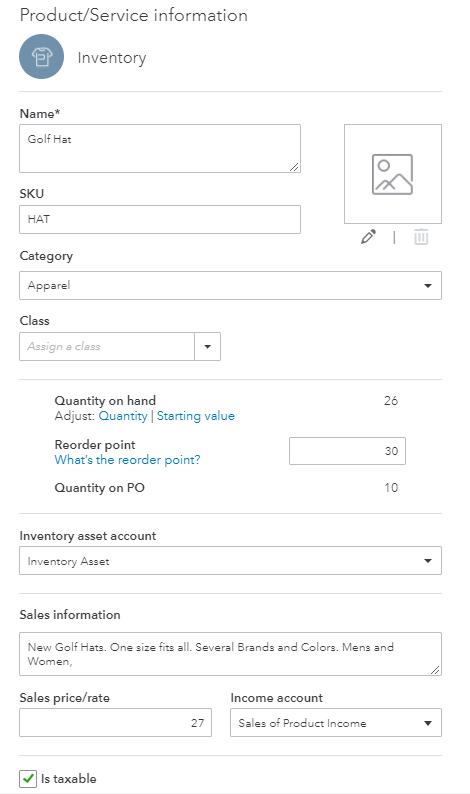
Please see several screenshots below re what I have been discussing re inventory and price rules, shots are all taken from my QuickBooks Online Plus file…
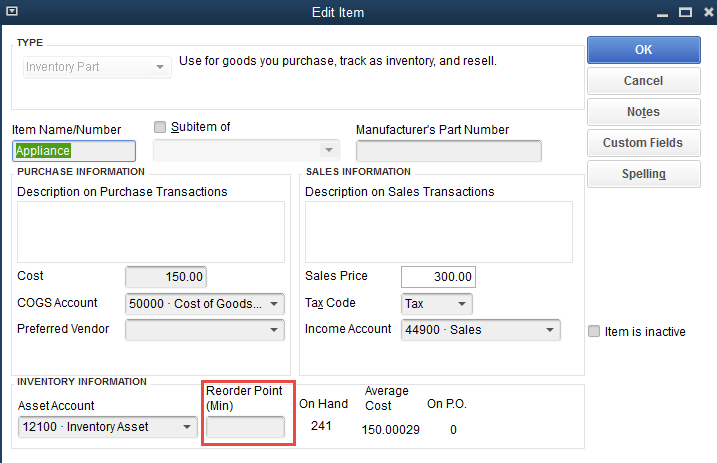
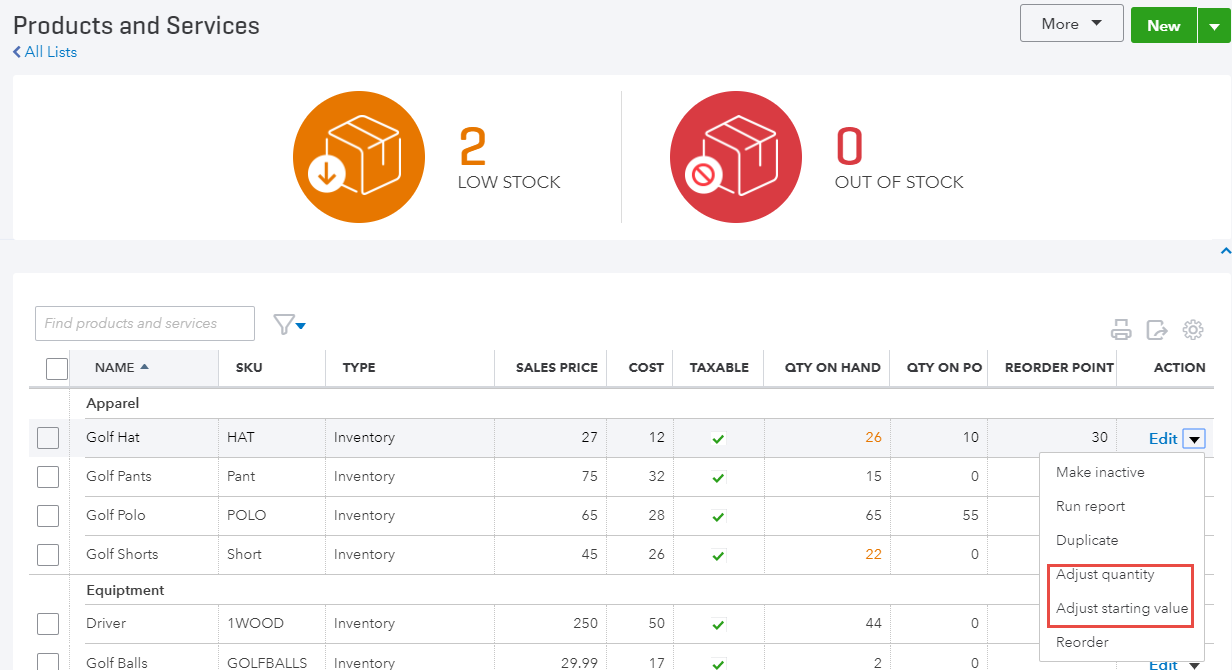
Pro supports reorder points, so does Plus. As well, note the 3-sided items in both for inventory parts, as well as Quantity On Hand, Sku or Manufacturer Part No, and other important item detail fields. Pro does have custom fields which Plus will not, I miss that one too.
Comparing QuickBooks Online to QuickBooks Desktop
I do like how the Price rule is shown at the item record level in QuickBooks Online Plus, whereas Pro I have to go to the actual Price level list to see. Also, see how lame Pro’s Price level function is vs Plus…Again, Plus supports price ruling customized by item, customer type and by date.
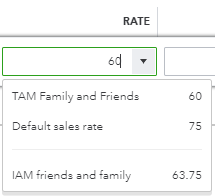
And on a sales form, in rate field, just like in Pro, QuickBooks Online will show the default sales rate and the price rule rate:
Pro supports partial PO receiving, and so does Plus…
As well as QOH adjustment, value adjustment (starting value remember, not to be done all the time), and even preferred vendor…Oh I also love the Stock status at top of P&S list in Plus now.
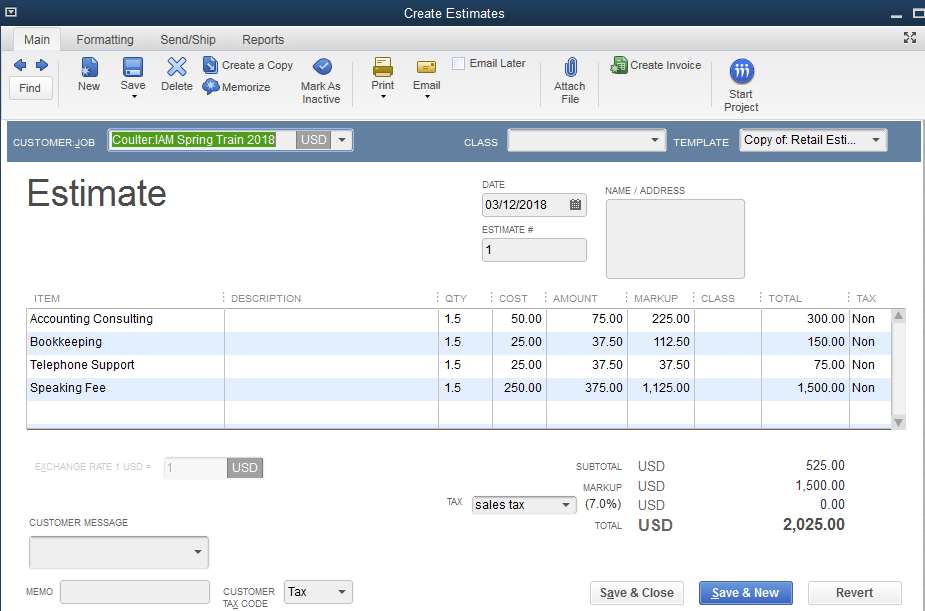
If I prefer QuickBooks Pro at all, it is due to custom fields at the item and name level, as well as the Markup column on Estimates. In Pro, I can see my estimated cost and revenue on the form itself, without even running a report. Not so with Plus, though I can get really close and there are some key settings to turn on to get the Estimating feature set. We not turn our gaze to those, think key features for service based businesses…
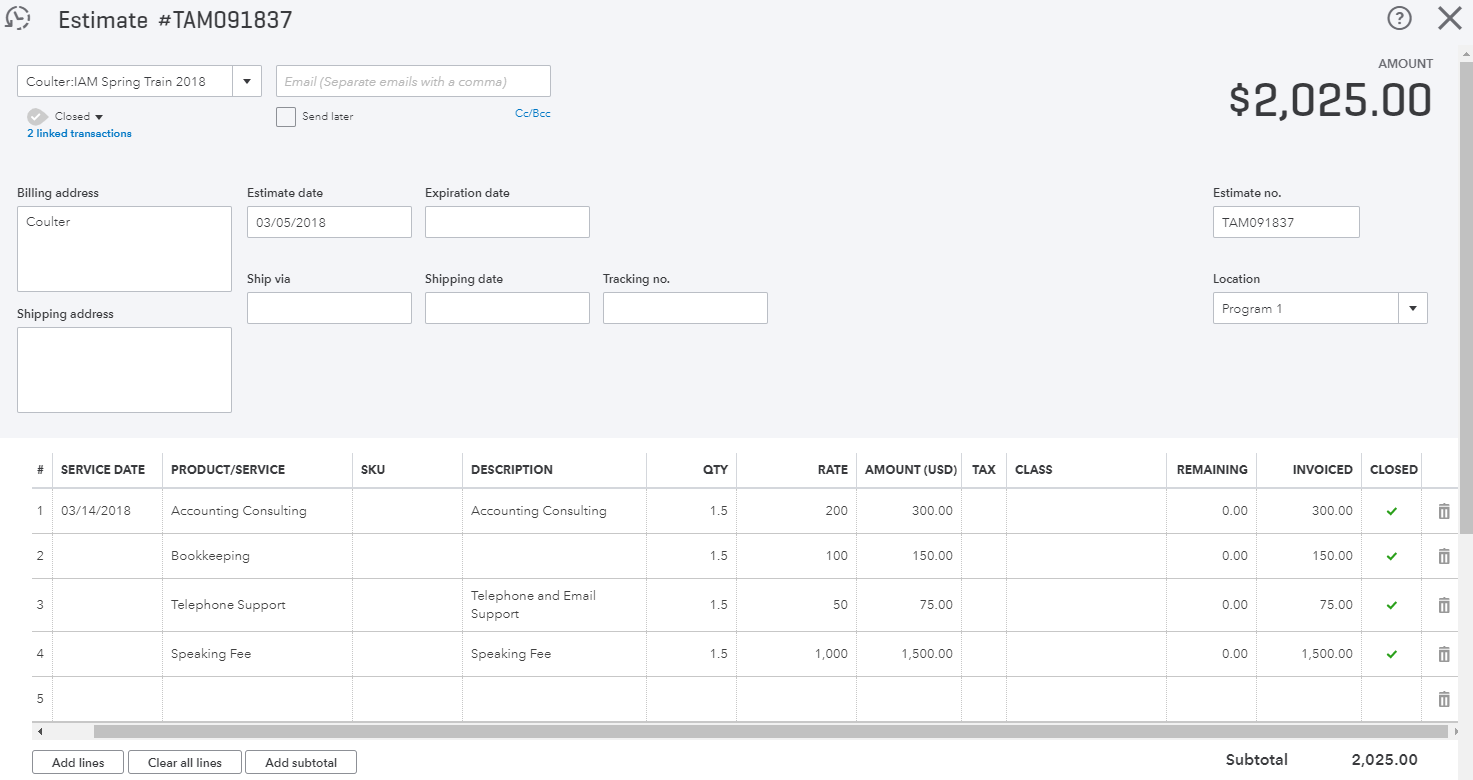
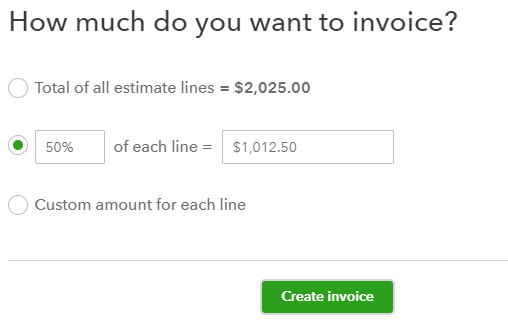
Now, look at the QuickBooks Online Plus estimate above. I have already invoiced progressively against it. Progress invoicing is supported in Pro, and also in Beta in Plus right now, soon to be rolled out to all Plus subs. It behaves just like the same feature in Pro save for reporting. At this time in Beta, not a lot of good visibility outside of the actual estimate or invoice of what has been invoiced against etc…But that will be added soon. Pro gets the same pop as below re Progress Invoicing…
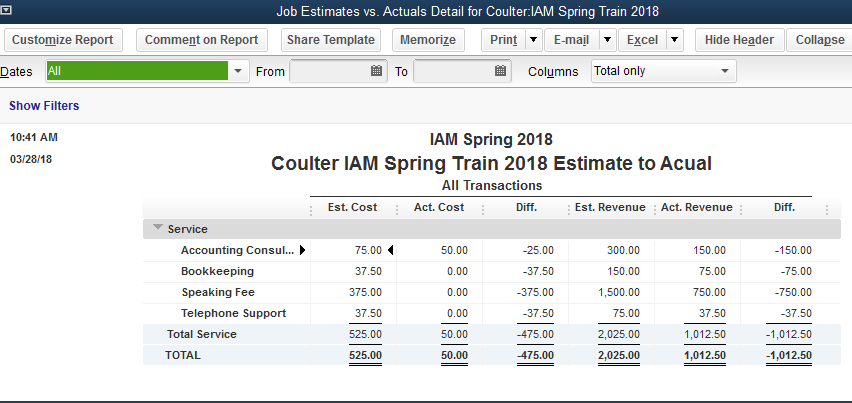
QuickBooks Pro supports Estimate to Actual reporting, for me the last real gap in QuickBooks Online that matters. I hope we get it in Plus sometime soon…
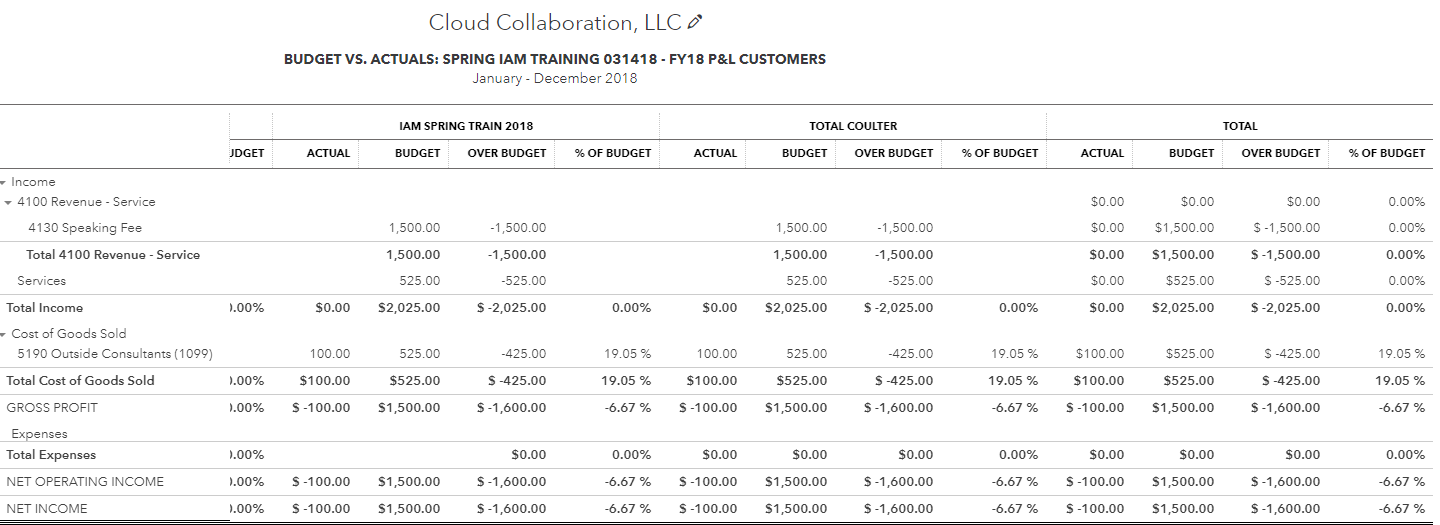
That being said, since I can do more than 1 budget per year in QuickBooks Online Plus, I can create a budget for the customer/sub-customer/project, like I can for a customer/job in Pro, and run the Budget vs Actual report filtered for that sub-customer/project to get the same info/result in Plus as in Pro…
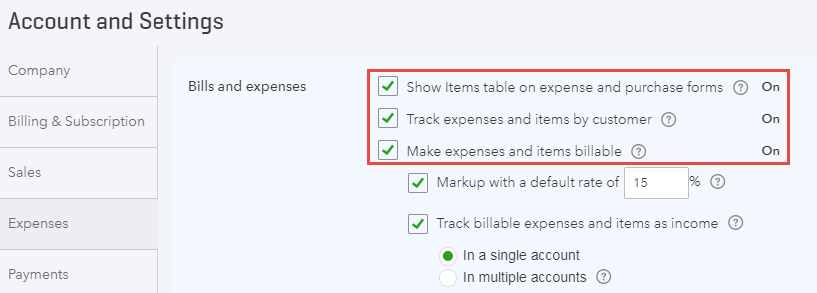
A few key settings to get the job costing going in QuickBooks Online Plus to be like QuickBooks Pro, see screenshots below. This allows me to pass thru time, expense and material to an invoice, or just tag jobs for profitability reporting.
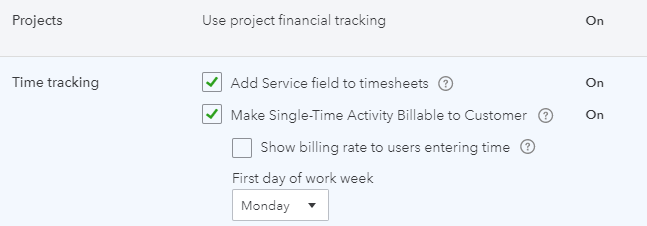
As well, I can tag a customer, sub-customer or project to time entry in QuickBooks Online like in Pro, but remember, time is non-posting till you add it to a posting transaction…and no, QuickBooks Online cannot track labor burden by job yet.
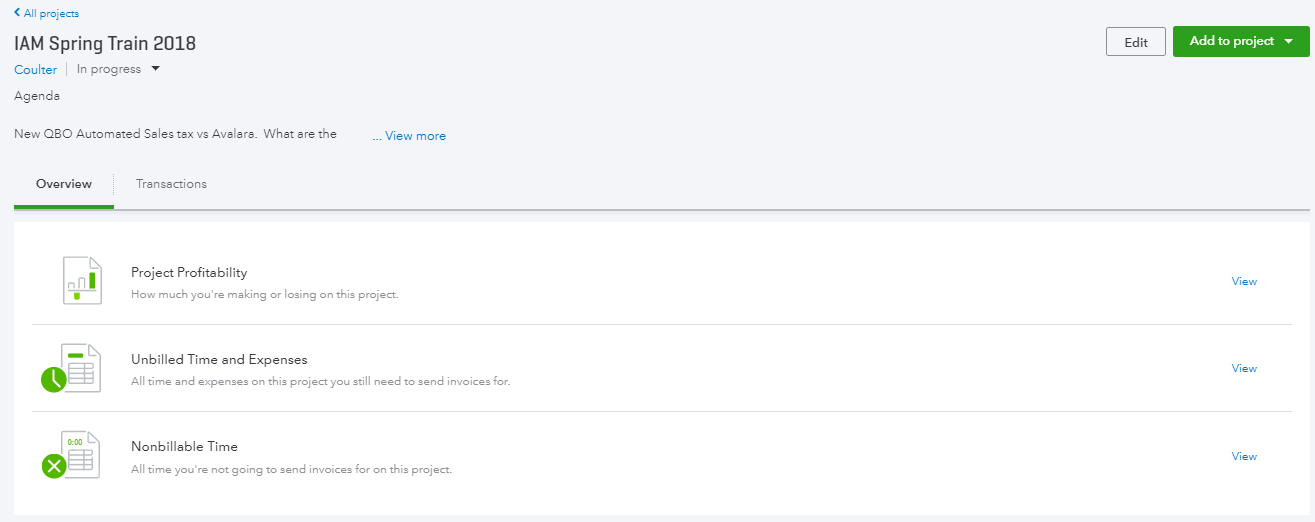
The Projects tracking feature can be turned on too, as it gives a Project center for good transaction, report and progress visibility. Pro does not offer the below visually or even in a center…
Net…net…QuickBooks Online Plus is super close to QuickBooks Pro feature set wise. Just a couple more enhancements and they will be literally interchangeable as options for your clients to track their businesses. There are advantages and disadvantages in both platforms, and I think a firm should support both for the most part, as our industry moves closer and closer to cloud only.
Side by side: comparing QuickBooks Online to QuickBooks Desktop
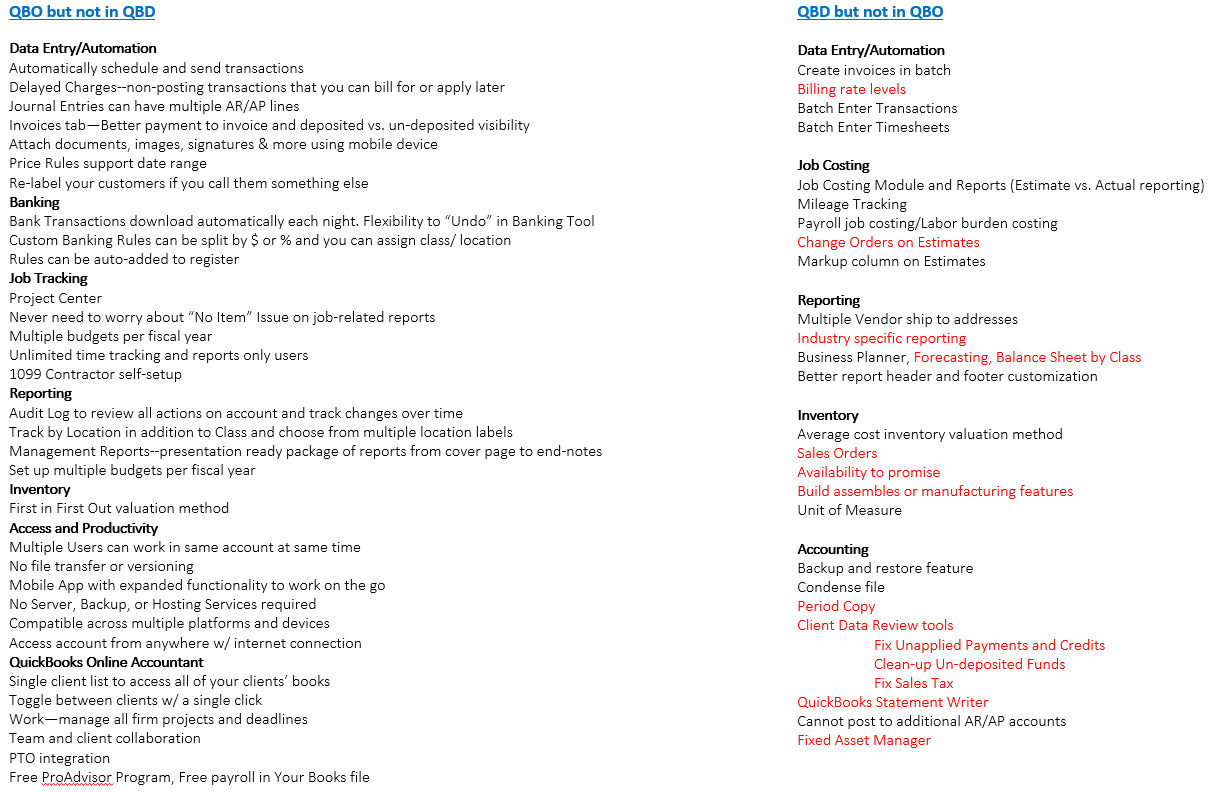
Last, I wanted to leave you with a thorough comp chart of QuickBooks Desktop and QuickBooks Online. Important to note, the stuff in red in the QuickBooks Desktop and Not in QuickBooks Online column is not in QuickBooks Pro ☺.
ADVANTAGES: QUICKBOOKS DESKTOP vs QUICKBOOKS ONLINE
by: Woody Adams, Valerie Heckman, Stacy Kildal
QuickBooks Desktop Advantages
If I were to generalize where I think QuickBooks Desktop still holds a major advantage, I’d say managing large amounts of inventory and job costing. QuickBooks Desktop still offers the following feature sets that QuickBooks Online does not. If you can’t live without any of the below, QBD is most likely best for you. Keep in mind that some of the features below are only supported in Premier and Enterprise, not in Pro. All the below QBD function can be solved in QBO with 3rd party apps!
Data Entry/Automation
Create invoices in batch
Billing rate levels
Batch Enter Transactions
Batch Enter Timesheets
Job Costing
Job Costing Module and Reports (Estimate vs. Actual reporting)
Mileage Tracking
Payroll job costing/Labor burden costing
Change Orders on Estimates
Markup column on Estimates
Reporting
Multiple Vendor ship to addresses
Industry specific reporting
Business Planner, Forecasting, Balance Sheet by Class
Better report header and footer customization
Inventory
Average cost inventory valuation method
Sales Orders
Availability to promise
Build assembles or manufacturing features
Unit of Measure
Accounting
Backup and restore feature
Condense file
Period Copy
Client Data Review tools (Fix Unapplied Payments and Credits, Clean-up Undeposited Funds, Fix Sales Tax)
QuickBooks Statement Writer
Cannot post to additional AR/AP accounts
QuickBooks Online Advantages
While I think QuickBooks Desktop still has the advantage in regards to features, QuickBooks Online is still my preferred choice. We can get much of the functionality that QuickBooks Desktop has by adding some third party apps, and the access and availability outweighs the feature set in desktop.
Data Entry/Automation
Automatically schedule and send transactions
Delayed Charges (non-posting transactions that you can bill for or apply later)
Journal Entries can have multiple AR/AP lines
Invoices tab—Better payment to invoice and deposited vs. un-deposited visibility
Attach documents, images, signatures & more using mobile device
Price Rules support date range
Re-label your customers if you call them something else
Banking
Bank Transactions download automatically each night. Flexibility to “Undo” in Banking Tool
Custom Banking Rules can be split by $ or % and you can assign class/ location
Rules can be auto-added to register
Job Tracking
Project Center
Never need to worry about “No Item” Issue on job-related reports
Multiple budgets per fiscal year
Unlimited Time Tracking Only Users in Essentials and Plus, Unlimited Reports Only Users in Plus.
1099 Contractor self-setup
Reporting
Audit Log to review all actions on account and track changes over time
Track by Location in addition to Class and choose from multiple location labels
Management Reports (presentation ready package of reports from cover page to end notes)
Set up multiple budgets per fiscal year
Inventory
First in First Out valuation method
Access and Productivity
Multiple Users can work in same account at same time
No file transfer or versioning
Mobile App with expanded functionality to work on the go
No Server, Backup, or Hosting Services required
Compatible across multiple platforms and devices
Access account from anywhere w/ internet connection
QuickBooks Online Accountant
Single client list to access all of your clients’ books
Toggle between clients w/ a single click
Work—manage all firm projects and deadlines
Team and client collaboration
ProConnect Tax Online integration
Free ProAdvisor Program, Free payroll in “Your Books” account
QBO TOP 40 COUNTDOWN to #QBConnect 2017 Combined list. Woody Adams and I have teamed up to bring you the QBO TOP 40 COUNTDOWN (to #QBConnect)
We’ve compiled a list of 40 features, tips and tricks that will help you work better, faster smarter. Keep in mind, there’s no particular order here we both just added to the list until we hit 40!
Today is the start of 2017 QuickBooks Connect, so we hope to see you there!
We’ve been counting them down, and we did all 40 here on StacyK.net, but you can check them all out in one place by clicking this link: