Back from a bit of a summer break, we’re diving right in with a guest blog post. My friend and co-host of QBOShow.com, Woody Adams, has written this piece about automating data entry in QuickBooks Online. there are a variety of options to choose from, and below are a few:
Bank Rules/Auto-add—google vendor upload show result
Invoice automatically for unbilled activity—invoice L1386
Let’s dig in to automating data entry using QuickBooks Online, and thanks so much to Woody for writing this!
First, we all know why we prefer QuickBooks Online Plus over Essentials, right? Need I remind you…
5 Users included (can expand to 25) + 2 Bookkeeper/Accounting Firms + Unlimited Reports Only Users
Class/ Location Tracking
Purchase Orders
Inventory using FIFO valuation/ track profitability with two-sided items
Billable Time/ Expenses, Two-sided items
Budgeting
100 + Reports
Yeah, two-sided items is my sleeper hit, but I just think Plus is most akin to QB Pro, minus a few features still: Labor burden tracking, finance charges, loan manager (LOL), Estimate v Actual reporting, single unit of measure, just thinking of some of the key gaps…still, Plus is the QuickBooks Online most similar in feature set. That being said, QuickBooks Online supports data entry automation in a better way than QB Desktop. While both platforms can Auto-send reports and enter Memorized (Recurring) transactions, this is where QuickBooks desktop ends re automating transaction or form entry. And this is the part of the story that QuickBooks Online continues…
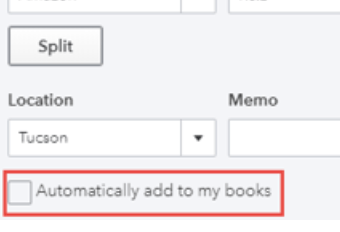
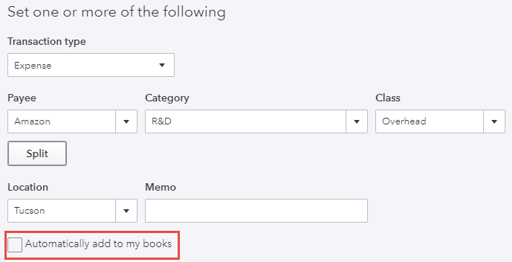
“Automatically add to my books”
This feature lives inside of a bank rule. It is a tiny checkbox at the bottom of the rule window. The box is NOT default checked and probably for good reason. Imagine the havoc. However, if you are establishing a rule for how a bank feed transaction is to be categorized and the correct Payee is assigned, and you do not need to review the activity, but can just let it dive into the register once the rule is applied, then this feature is your new best friend.
Literally, I kid you not, the downloaded transactions skips the For Review tab and just ends up in the books. You can see the Mode too the bank feed applied when click the blue link at top left of transaction that is NOW in the register…
Invoice Automatically for Unbilled Activity
Quite a mouthful, eh? Even if you are not from Canada…
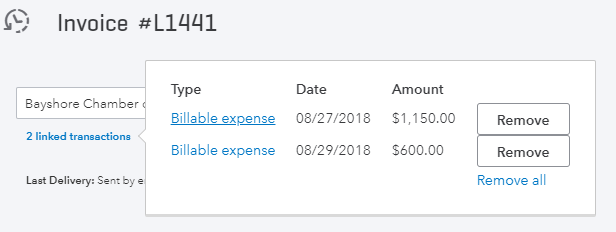
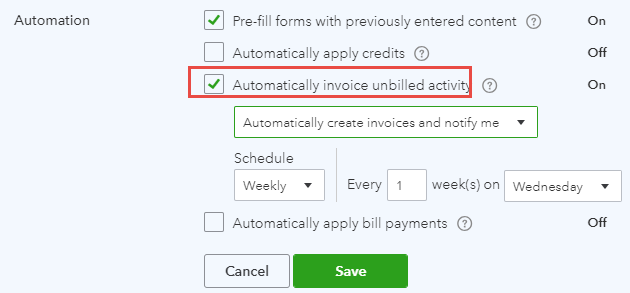
Go to Gear icon, Account and Settings, Advanced tab. You will see this sub-section entitled “Automation”. It’s the 3rd option. See screenshot below. This will enter invoices for any unbilled activity from the following posting or non-posting events: Bills, checks, expenses, time, delayed charges and bank feed transaction (not yet supported at the rule level), assuming the Billable box is checked. QuickBooks Online, like QuickBooks desktop will assume you want to create invoices for the yet to be invoiced time, material, expense, but go one step further…regardless of client, create invoices for all unbilled activity based on the interval you choose. What about Journal Entry you say? There is no Billable box on a JE in QuickBooks Online Plus at this time. Why do I say Plus you ask? Cause Plus is required if you want to tag “TME” to a customer, sub-customer or project (sort a’ new) and is the only QuickBooks Online level that offers making this stuff billable. In QuickBooks desktop it is the Add Time/Costs window on route to the invoice. In QuickBooks Online Plus, it can be invoices automatically created. The below invoice was created while I had that automation feature active…Woody forgot he had all this unbilled activity for this customer once, turned on the feature, the next day an invoice was created that had 150 target lines on it. LOL. I saw the invoice. He emailed it to me because we find that kind of thing hilarious…
Qualification: This is a Global setting, no I don’t meant like overseas. I mean it will create invoices like Jack Bauer would; rogue and coming in heavy guns blazin’. If you require to select what customers get what invoices for what unbilled activity, do NOT turn this feature on. Instead, leverage the next feature that QuickBooks desktop also has but only in part…
Recurring Invoices
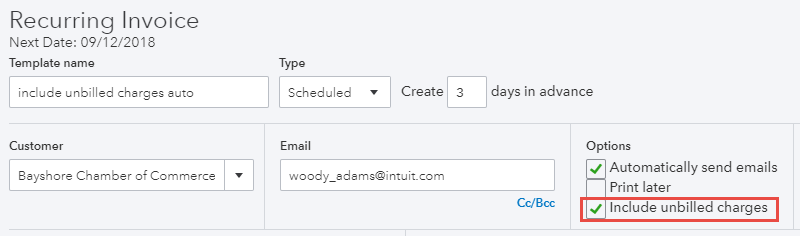
Yes, I know. I been using QuickBooks Online since 2003 and QuickBooks desktop from way before that. I know Desktop has memorized invoices capability. However, when we’re talking about automating data entry using QuickBooks Online, the same recurring invoice feature in QuickBooks Online offers the ability to include unbilled activity. This is great as while I like the more global setting, this feature can focus on a specific customer.
The above recurring invoice template will be created and any unbilled activity tagged to the customer anywhere else in the QuickBooks Online file (bills, checks, expenses, delayed charges, time) will be included. Sweet!
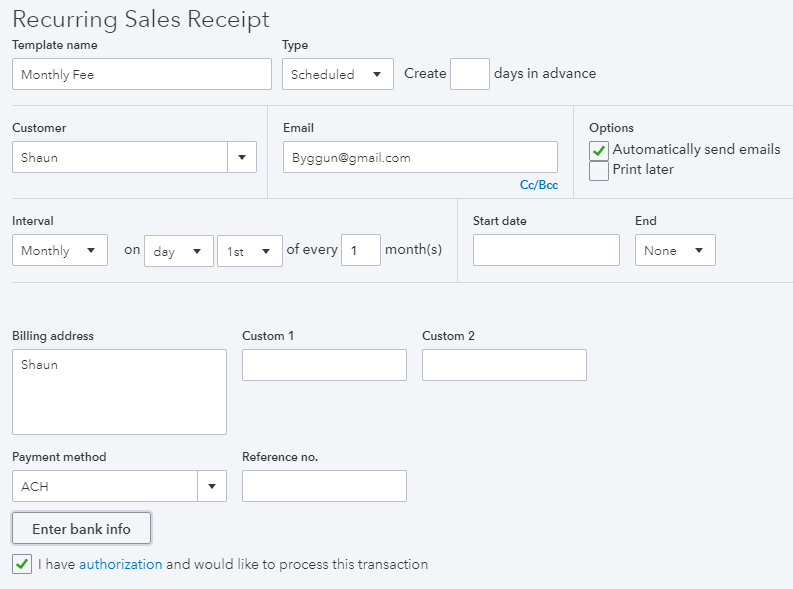
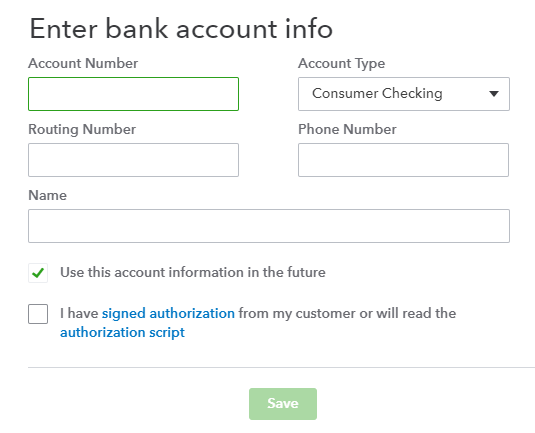
One of the coolest features for automating data entry using QuickBooks Online, period. We do this with most of our subscription billing based clients. In our QuickBooks Online file, we set up a recurring Sales receipt for each client. QB Payments is turned on in Settings. I check the box in the recurring Sales receipt template to auto send to client (input their email address) and I enter their banking/routing numbers in the Payment method field. There is a PCI compliance script you can read to them, a box to check, and then I just leave it alone. Every month the clients gets the emailed receipt, 5 days later I get paid. QB Payments is free and ACH is free so it costs me only the time to set up the recurring transactions for my clients. 5 day funding period might raise a few eyebrows. I have one question to bring them down to a reasonable level: How many days does it take to collect against an open invoice for one of your clients? It’s not 5 days. LOL Maybe you even have to send a drone over to their home or location. As far as you know, Shannon and I have never had to do that…
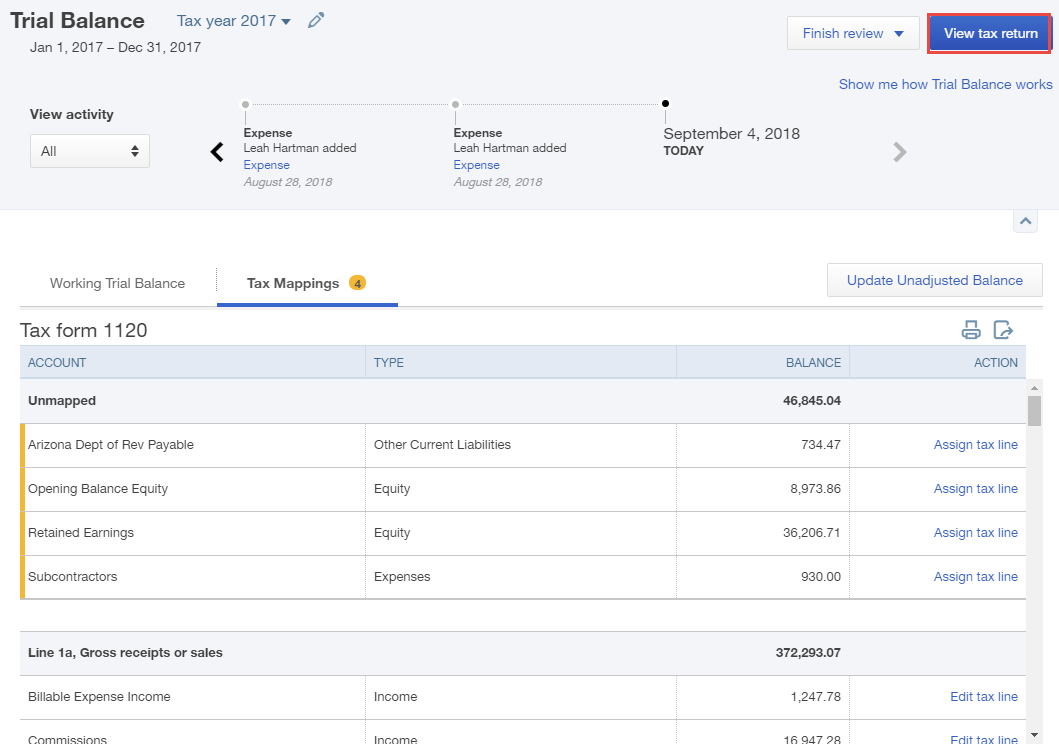
Lastly, automating data entry to the tax return in ProConnect Tax Online. We don’t have any tax clients but I have seen Woody do this in webinars. No, he does not have any tax clients either, but he is a QuickBooks Online nerd just like me and you. And not having to enter data into the data fields in ProConnect Tax Online does qualify as automating data entry.
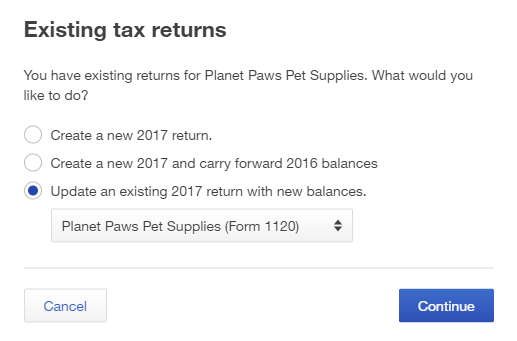
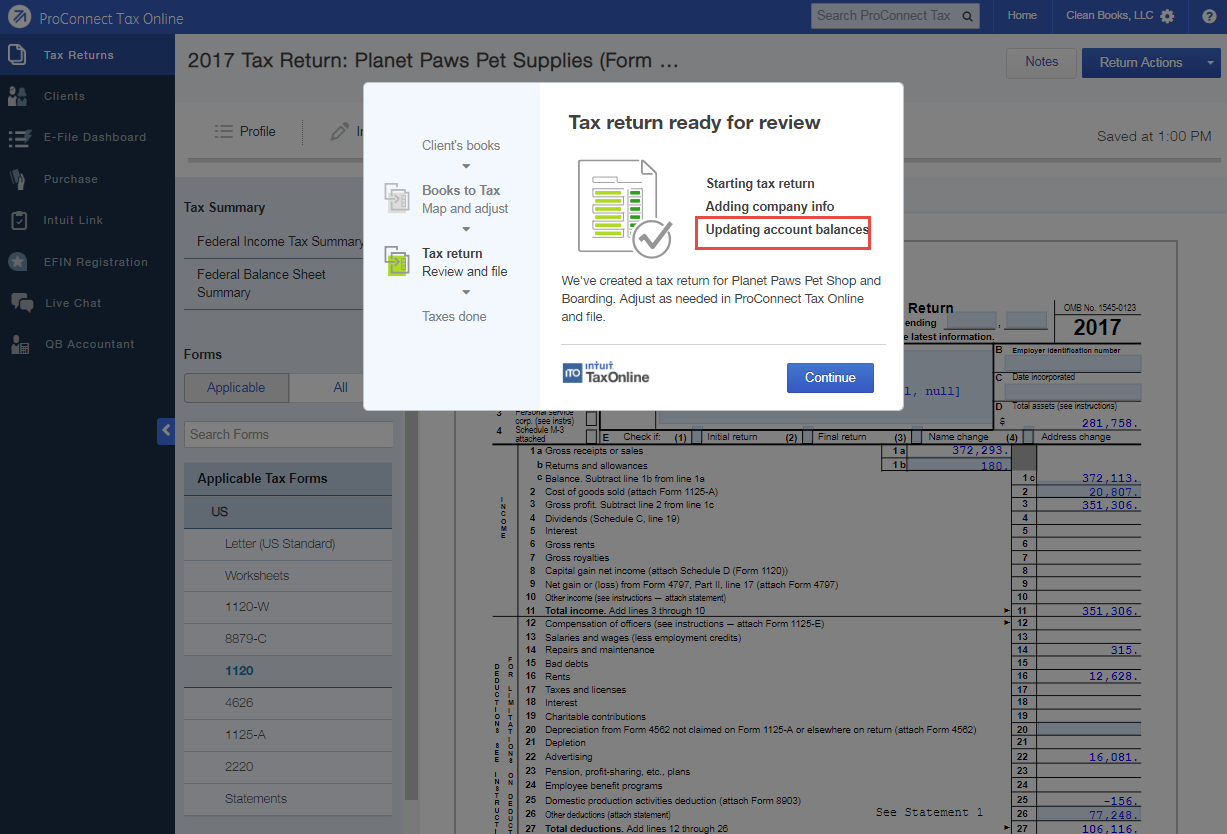
In the Trial Balance tool under the Accountant Toolbox, when in a client QuickBooks Online file from QuickBooks Online Accountant, you will see Trial Balance. This is not the report but a Working trial balance that also is the launch pad for the native integration we know have with ProConnect Tax Online. Pictures worth 15 or 16 words…
By the way, all the above functionality that automates data entry is in QuickBooks Online as it is, with no other apps required. Of course there are several great data fetching apps that help with Automating Data Entry Using QuickBooks Online. Ask me about them someday!
This recently came up in a few different places, so I thought I’d share a few ways to add customer notes in QuickBooks Online.
This first method is the easiest, and will work for any QuickBooks Online user. It’s a simple way to document customer notes in QuickBooks Online, for ongoing issues, special circumstances, etc.
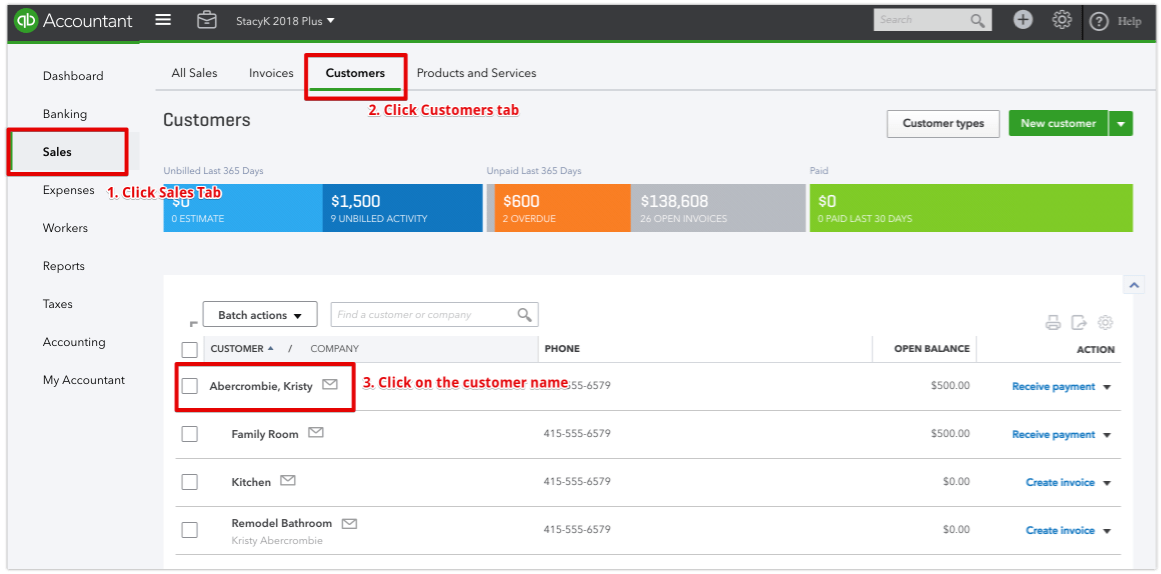
Click on the Sales tab in the Left Nav bar, then the Customers tab, then click on the name of the customer/client to which you need to add notes. This will bring up the client detail page:
You have two ways to enter the notes. Either just click the notes under the name, or click the Edit button, then the Notes tab in the customer record:
There are different ways to add Customer Notes in QuickBooks Online and QuickBooks Online Accountant
If you’re an accountant user and you’re using QuickBooks Online Accountant, you can use the Work tab to add Customer Notes in QuickBooks Online Accountant.
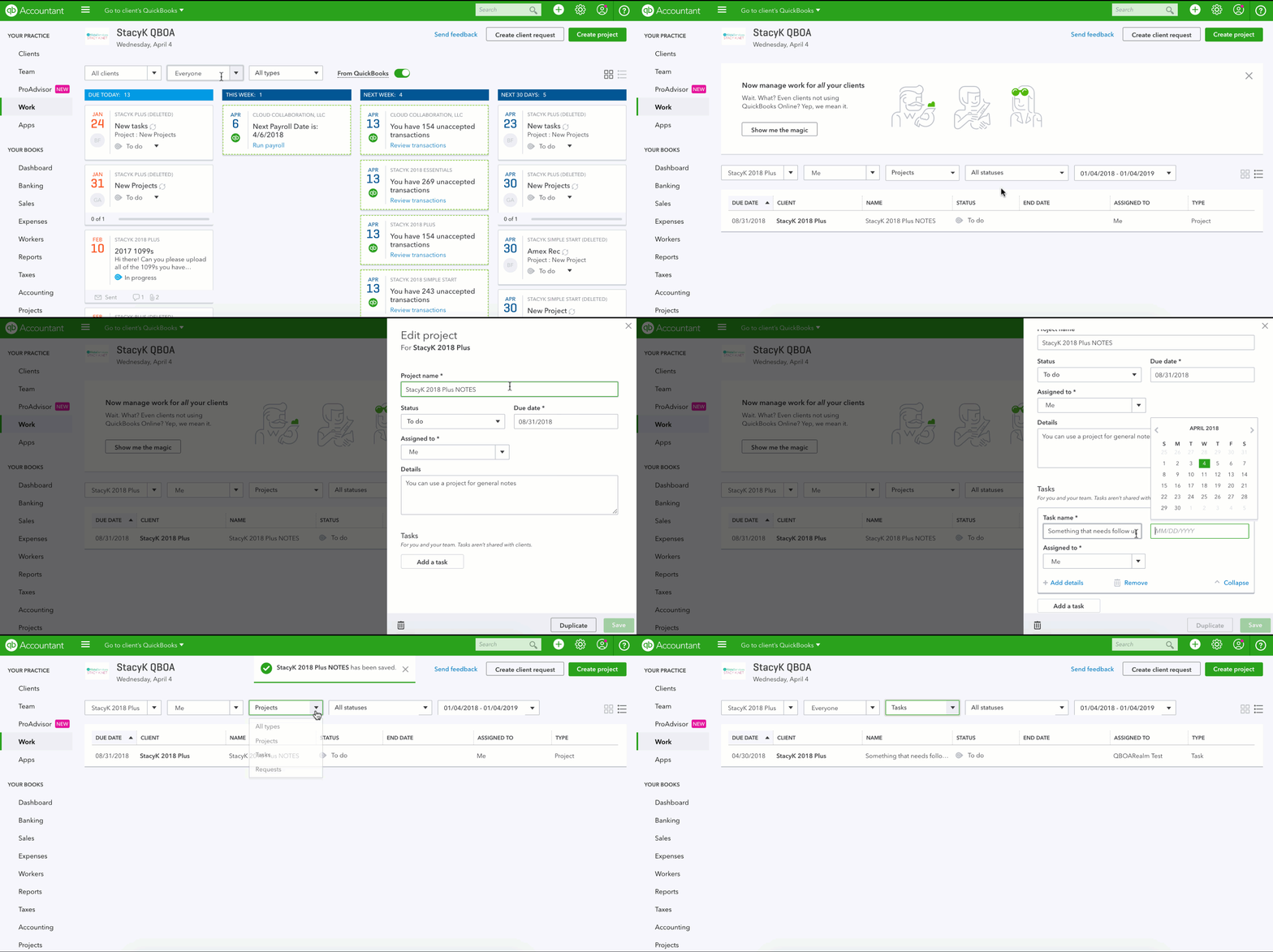
In QuickBooks Online Accountant, click the Work tab, then the Create Project button, to add a “project” . This doesn’t have to be anything that NEEDS to get done, it could just be some general notes that you want to keep, so keep that in mind when you’re setting a due date. In this case, I called the project “~Client Name~ Notes”
If you DO need to assign some follow up to anything related to the notes, you can add a Task to the the notes “project”, and assign that task to a specific team member. Here I am searching the project, opening it by clicking the name, then clicking the Add a task button and assigning it to another team member.
So there you go! No need for additional apps to keep track of customer/client notes. You can add Customer Notes in QuickBooks Online or use Work in QuickBooks Online Accountant to add them and assign follow up to your team members!
ADVANTAGES: QUICKBOOKS DESKTOP vs QUICKBOOKS ONLINE
by: Woody Adams, Valerie Heckman, Stacy Kildal
QuickBooks Desktop Advantages
If I were to generalize where I think QuickBooks Desktop still holds a major advantage, I’d say managing large amounts of inventory and job costing. QuickBooks Desktop still offers the following feature sets that QuickBooks Online does not. If you can’t live without any of the below, QBD is most likely best for you. Keep in mind that some of the features below are only supported in Premier and Enterprise, not in Pro. All the below QBD function can be solved in QBO with 3rd party apps!
Data Entry/Automation
Create invoices in batch
Billing rate levels
Batch Enter Transactions
Batch Enter Timesheets
Job Costing
Job Costing Module and Reports (Estimate vs. Actual reporting)
Mileage Tracking
Payroll job costing/Labor burden costing
Change Orders on Estimates
Markup column on Estimates
Reporting
Multiple Vendor ship to addresses
Industry specific reporting
Business Planner, Forecasting, Balance Sheet by Class
Better report header and footer customization
Inventory
Average cost inventory valuation method
Sales Orders
Availability to promise
Build assembles or manufacturing features
Unit of Measure
Accounting
Backup and restore feature
Condense file
Period Copy
Client Data Review tools (Fix Unapplied Payments and Credits, Clean-up Undeposited Funds, Fix Sales Tax)
QuickBooks Statement Writer
Cannot post to additional AR/AP accounts
QuickBooks Online Advantages
While I think QuickBooks Desktop still has the advantage in regards to features, QuickBooks Online is still my preferred choice. We can get much of the functionality that QuickBooks Desktop has by adding some third party apps, and the access and availability outweighs the feature set in desktop.
Data Entry/Automation
Automatically schedule and send transactions
Delayed Charges (non-posting transactions that you can bill for or apply later)
Journal Entries can have multiple AR/AP lines
Invoices tab—Better payment to invoice and deposited vs. un-deposited visibility
Attach documents, images, signatures & more using mobile device
Price Rules support date range
Re-label your customers if you call them something else
Banking
Bank Transactions download automatically each night. Flexibility to “Undo” in Banking Tool
Custom Banking Rules can be split by $ or % and you can assign class/ location
Rules can be auto-added to register
Job Tracking
Project Center
Never need to worry about “No Item” Issue on job-related reports
Multiple budgets per fiscal year
Unlimited Time Tracking Only Users in Essentials and Plus, Unlimited Reports Only Users in Plus.
1099 Contractor self-setup
Reporting
Audit Log to review all actions on account and track changes over time
Track by Location in addition to Class and choose from multiple location labels
Management Reports (presentation ready package of reports from cover page to end notes)
Set up multiple budgets per fiscal year
Inventory
First in First Out valuation method
Access and Productivity
Multiple Users can work in same account at same time
No file transfer or versioning
Mobile App with expanded functionality to work on the go
No Server, Backup, or Hosting Services required
Compatible across multiple platforms and devices
Access account from anywhere w/ internet connection
QuickBooks Online Accountant
Single client list to access all of your clients’ books
Toggle between clients w/ a single click
Work—manage all firm projects and deadlines
Team and client collaboration
ProConnect Tax Online integration
Free ProAdvisor Program, Free payroll in “Your Books” account
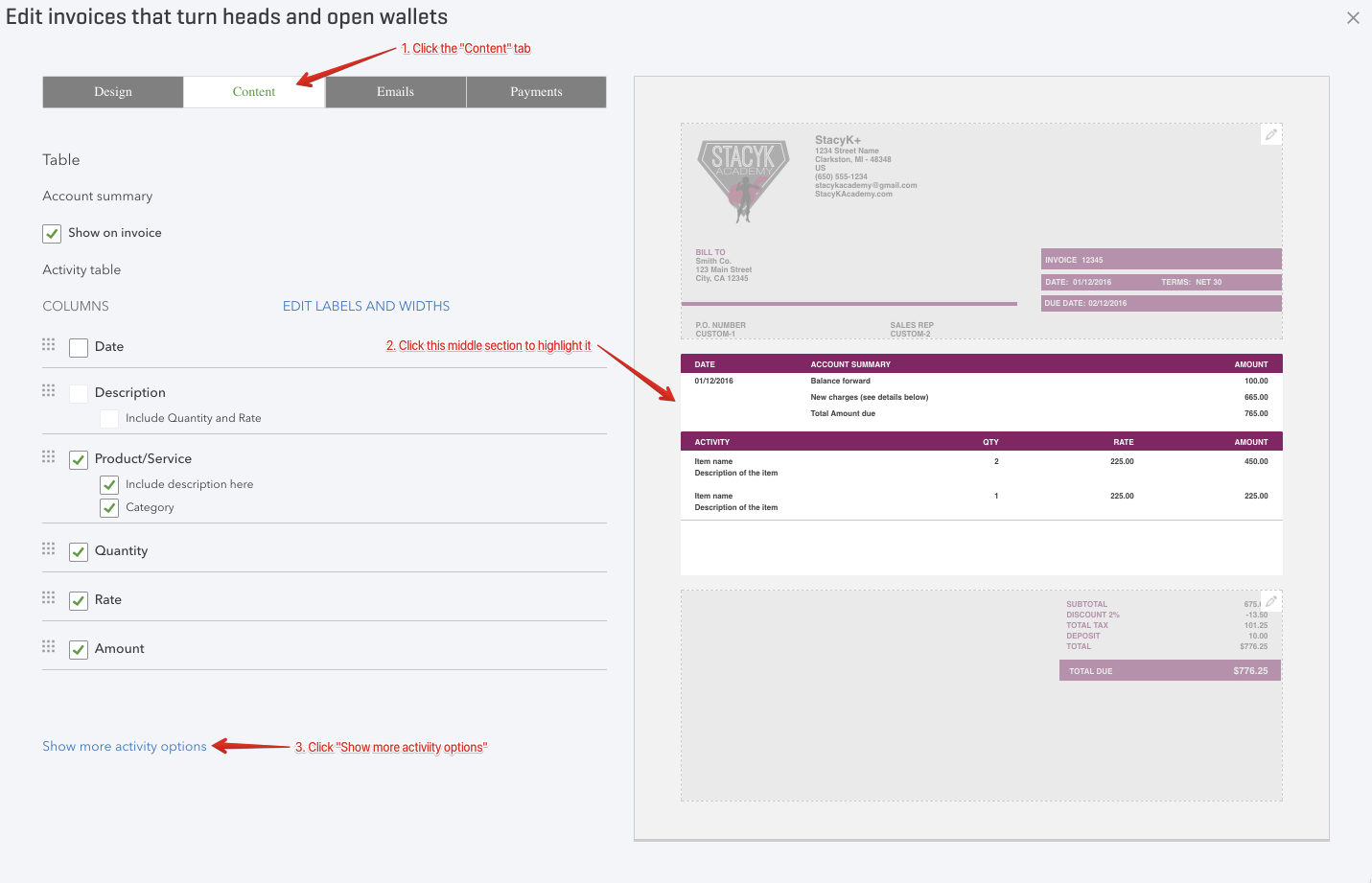
We want to turn on the option for the “Due” column and Estimate Summary. (This will only show up when you email the the estimate to a customer.)
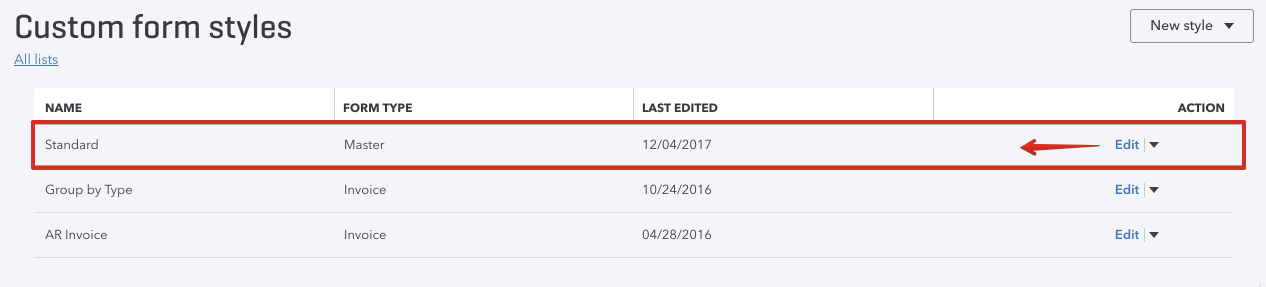
To turn on the feature, click Gear Icon > Custom Form Styles
Click “Edit” on the template set to default. In the screen shot below, this is indicated by the form type “Master”:
Once you’re in the edit screen, click the “Content” tab, the click anywhere in the middle section of the body of the template, then the link that says “Show more activity options”:
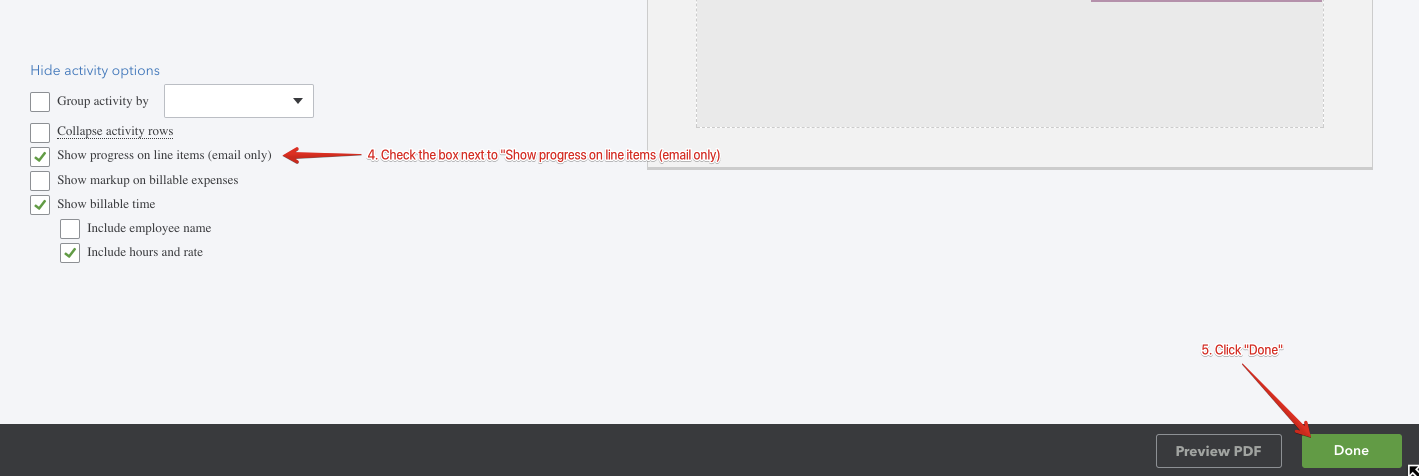
Now, you’ll check the box next to “Show progress on line items (email only)” and then the “Done” button in the bottom right corner.
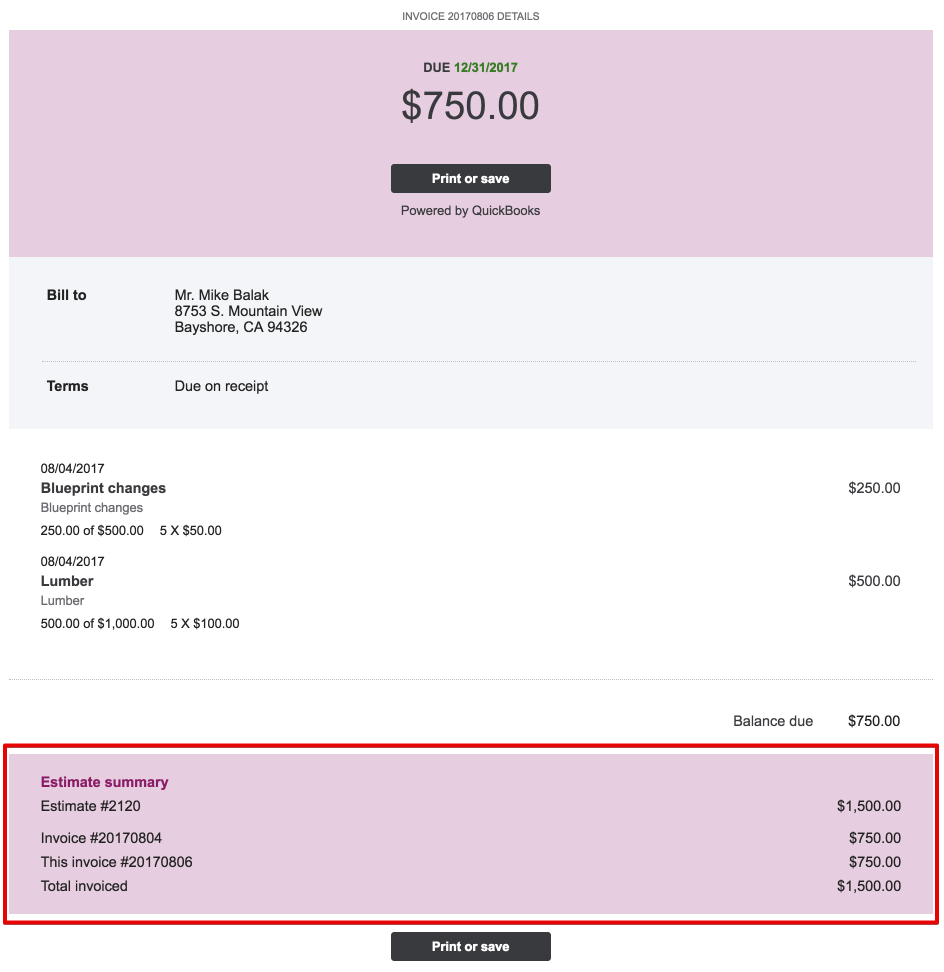
By setting this up, the customer will see an “Estimate Summary” on the invoice when you send one create from an estimate.
Now we’re ready to start using Progress Invoicing in QuickBooks Online!
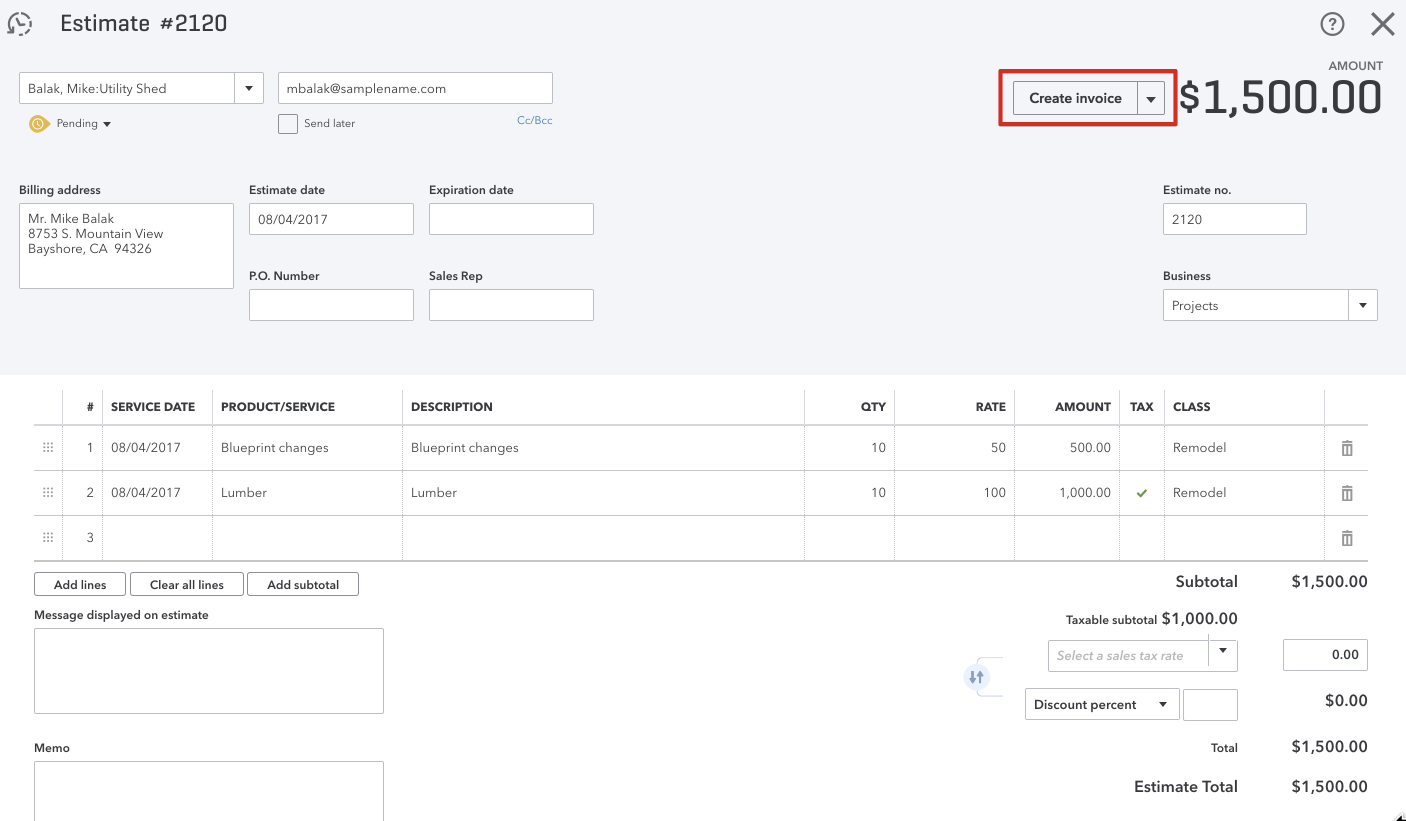
Open the estimate you created (our Estimate #2120), then click “Create Invoice”:
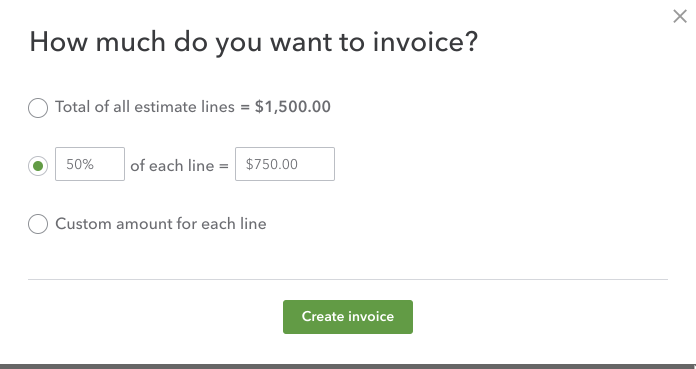
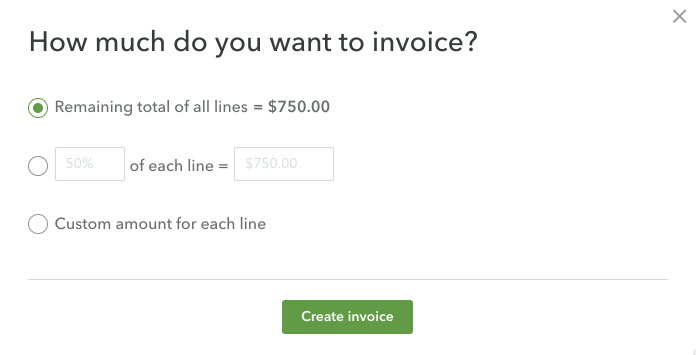
You’ll be asked how much to invoice. We have three choices: the entire estimate, a percentage of each line or a custom amount for each line.
For this job, we’re going to invoice 50% up front and 50% upon completion, so we’ll choose the second option, and enter in 50%, then click “Create Invoice”:
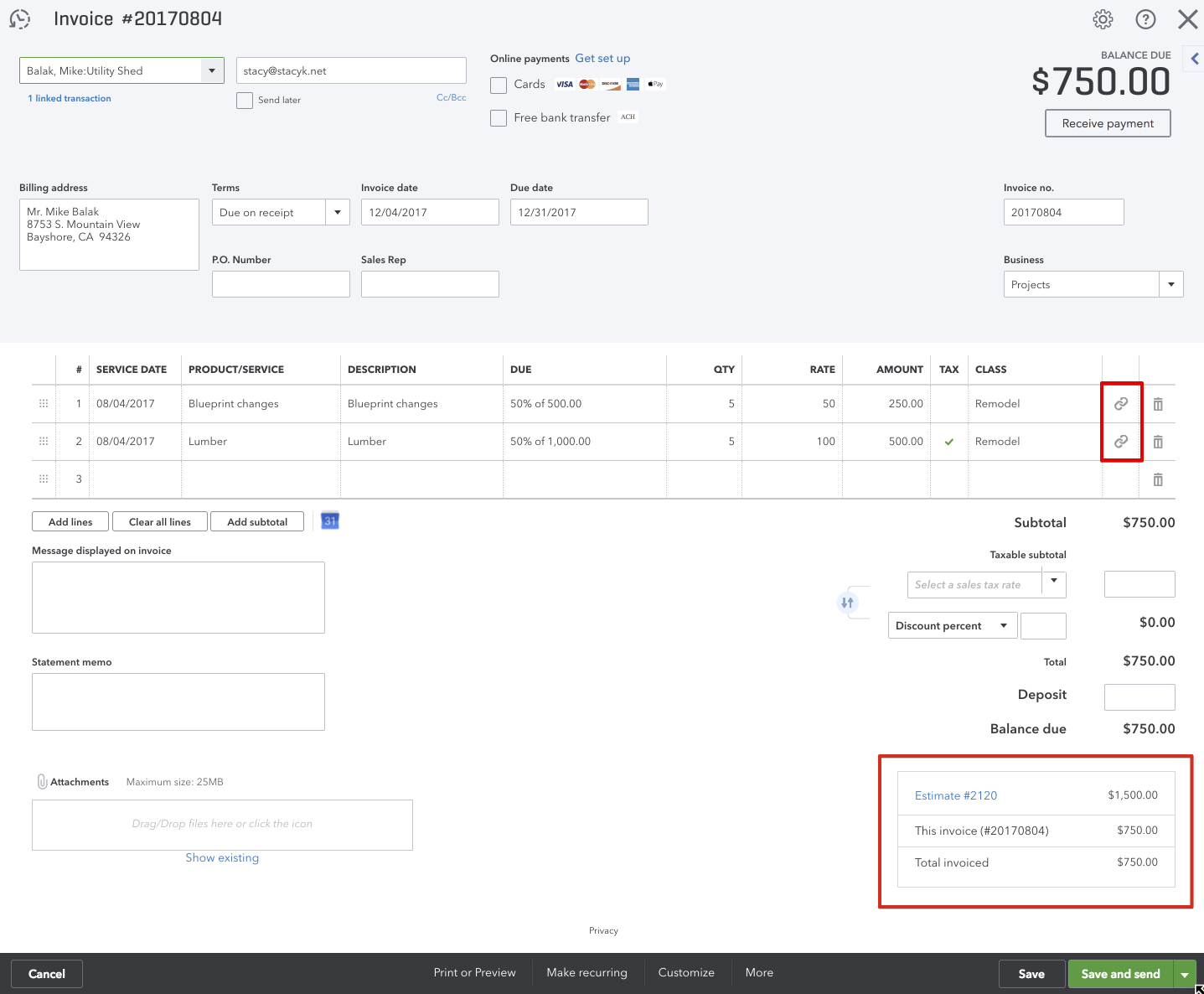
QBO will create the invoice, automatically adding the correct totals for each line item. Make any edits you need to (terms, PO Number, etc), then click “Save and send” to email it to the customer.
You’ll note that each link item now has a column with a little chain icon, that will link back to the estimate, and the bottom of the invoice includes the Estimate information:
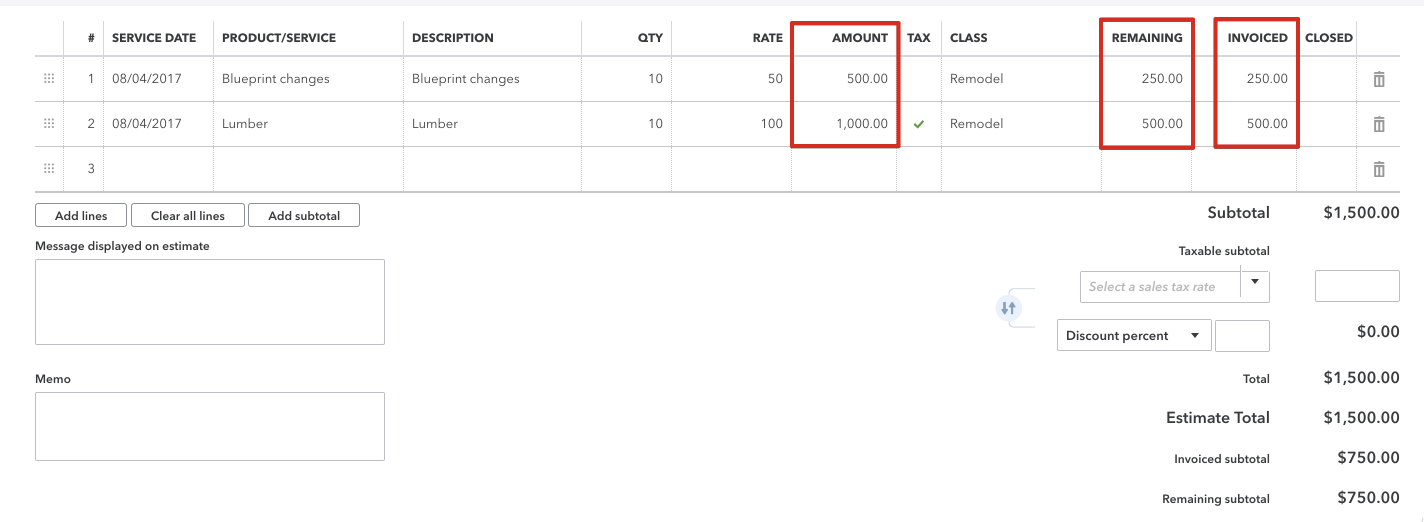
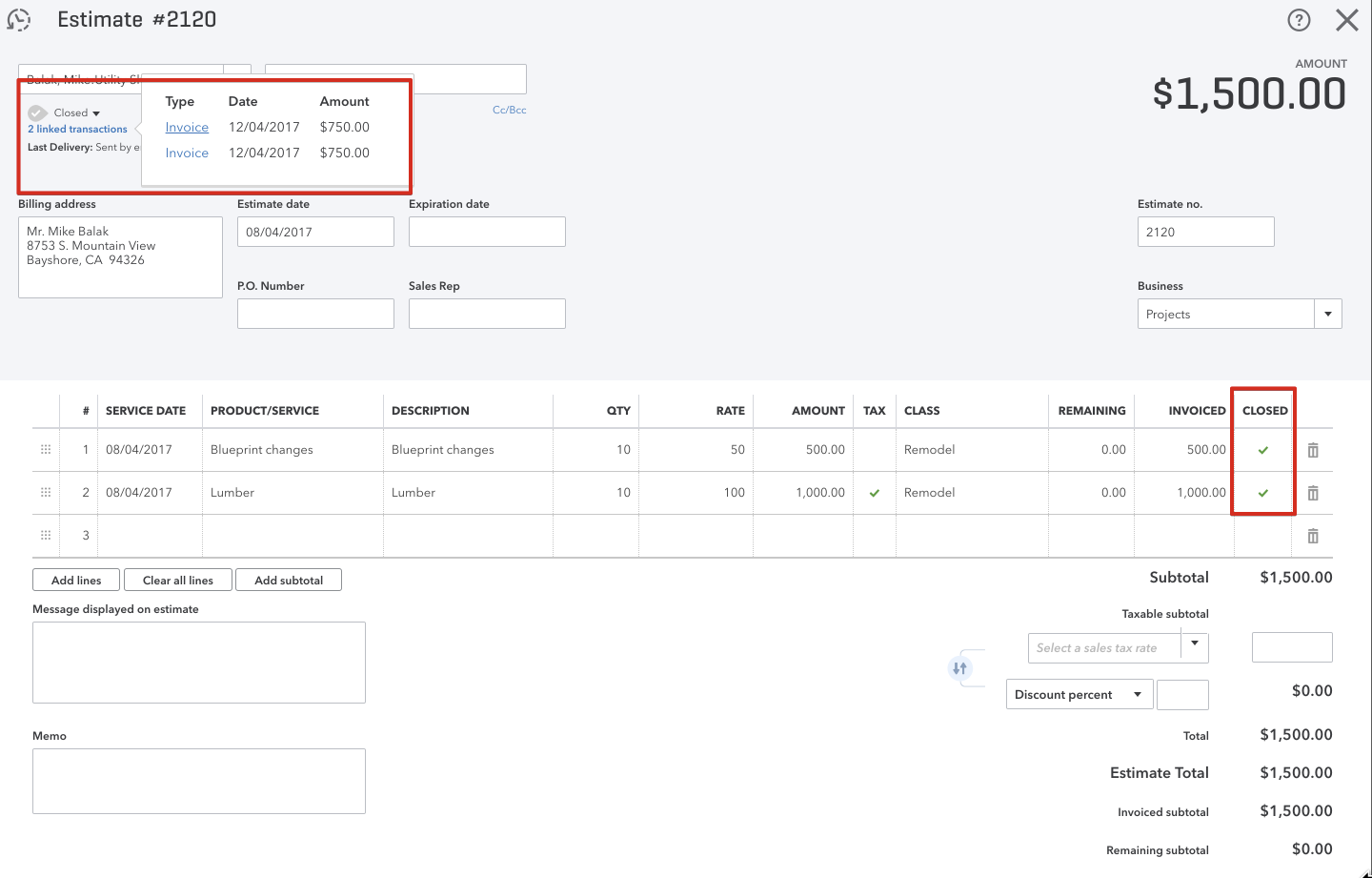
Going back to the Estimate, we can see the Total Amount, the Remaining and the Invoiced columns:
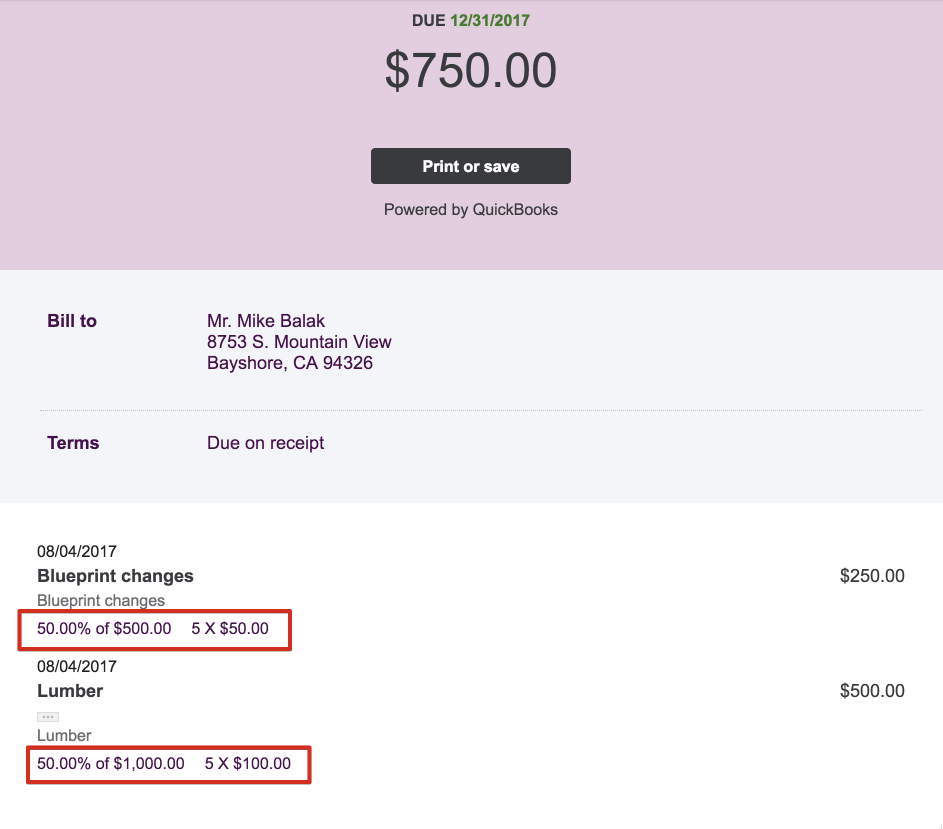
In addition to the Estimate Summary, when the customer gets the invoice, they will see in the line items that they are being invoiced for the percentage/amount:
We’re done with the project, so now we want send an invoice for the remaining amount and close out the estimate.
We’ll go back to our Estimate #2120, and again choose click the “Create Invoice” button in the top right corner.
You’ll notice something different about the options we have for invoicing. Now, instead of having the option to invoice for the total of the estimate, we can now create an invoice for the remainder. This is what we want to do, click “Remaining total of all line = $XXX.XX” and then “Create Invoice”:
Going back to our estimate, we’ll see that it is now closed, and we have two linked transactions:
NOTE: PROGRESS INVOICING IN QUICKBOOKS ONLINE IS STILL IN BETA AS OF THE DATE OF THIS POST (12/5/17).
I’ll keep you posted as to when it gets released into production!
Price Rules in QuickBooks Online are here!. Price rules/Price levels are one of the few features that I’ve said I need in order to put all of my clients on QuickBooks Online and then never look back at QuickBooks desktop. (Unless it’s to convert to QuickBooks Online).
For the record, the other features are:
Integrated direct labor costing. This one… I have nothing to say about it right now. It’s still the one thing that keeps my contractor clients from making the jump. Let’s just not talk about it and move on to the good stuff.
Progress Invoicing. I’m actually doing beta testing for this. SQUEEEEE.
This post, my friends, is about Price Rules in QuickBooks Online. Known in Desktop as Price Levels, so let’s dig into how we can set them up and use them.
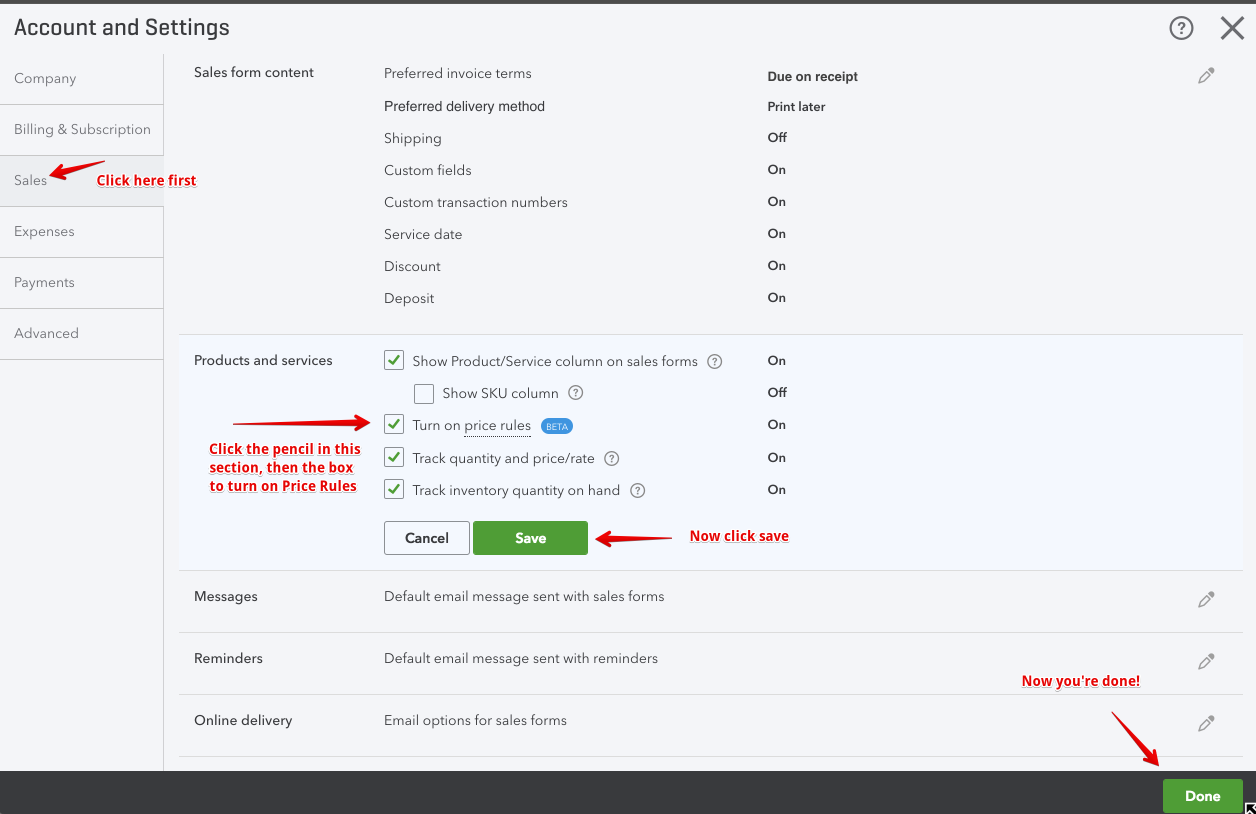
First we want to click on the Gear Icon in the top right corner, then choose Account and Settings.
Once we have the preference turned on, we can (yay!) start using Price Rules in QuickBooks Online.
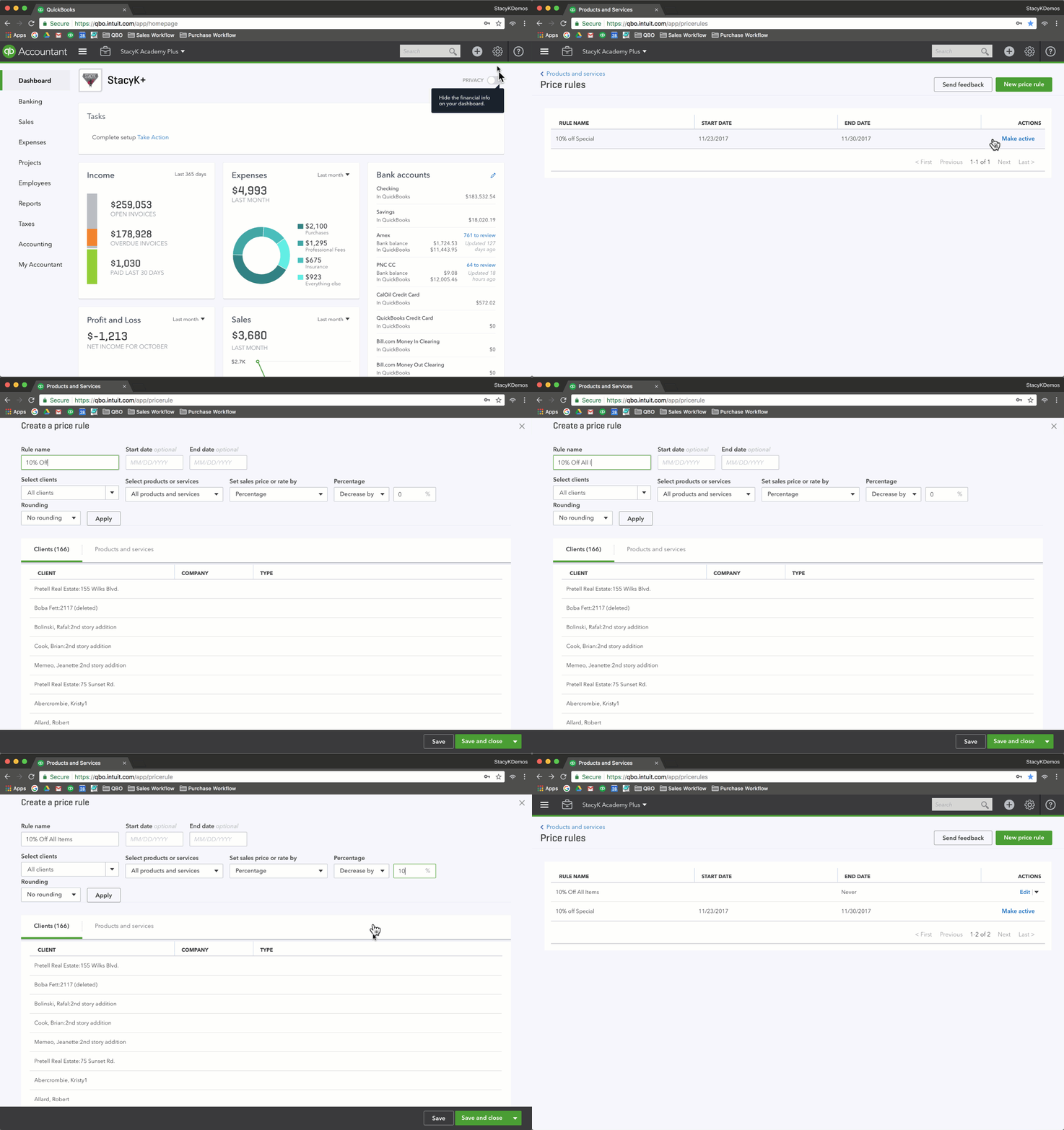
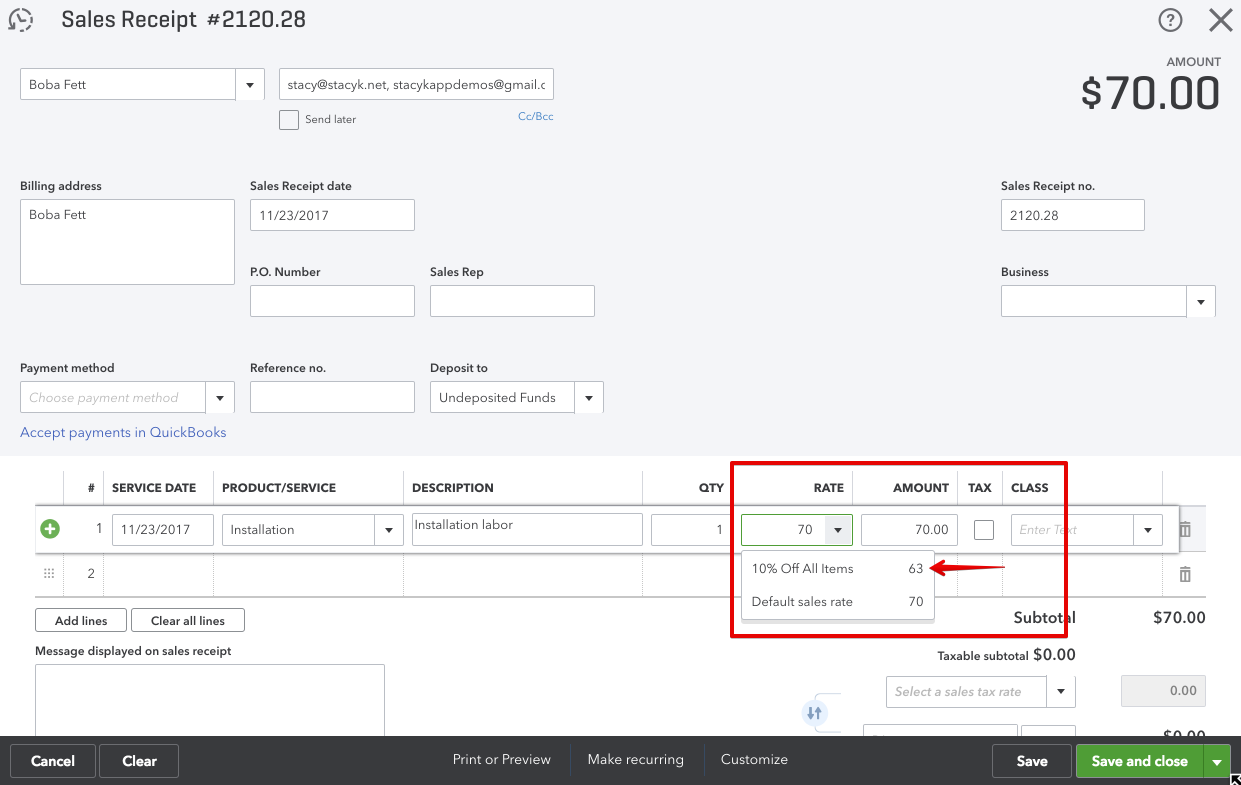
First, we’ll create a general price rule. This one is a just a blanket 10% discount that can be used for any customer on any product or service:
We’ll use it on a sales transaction:
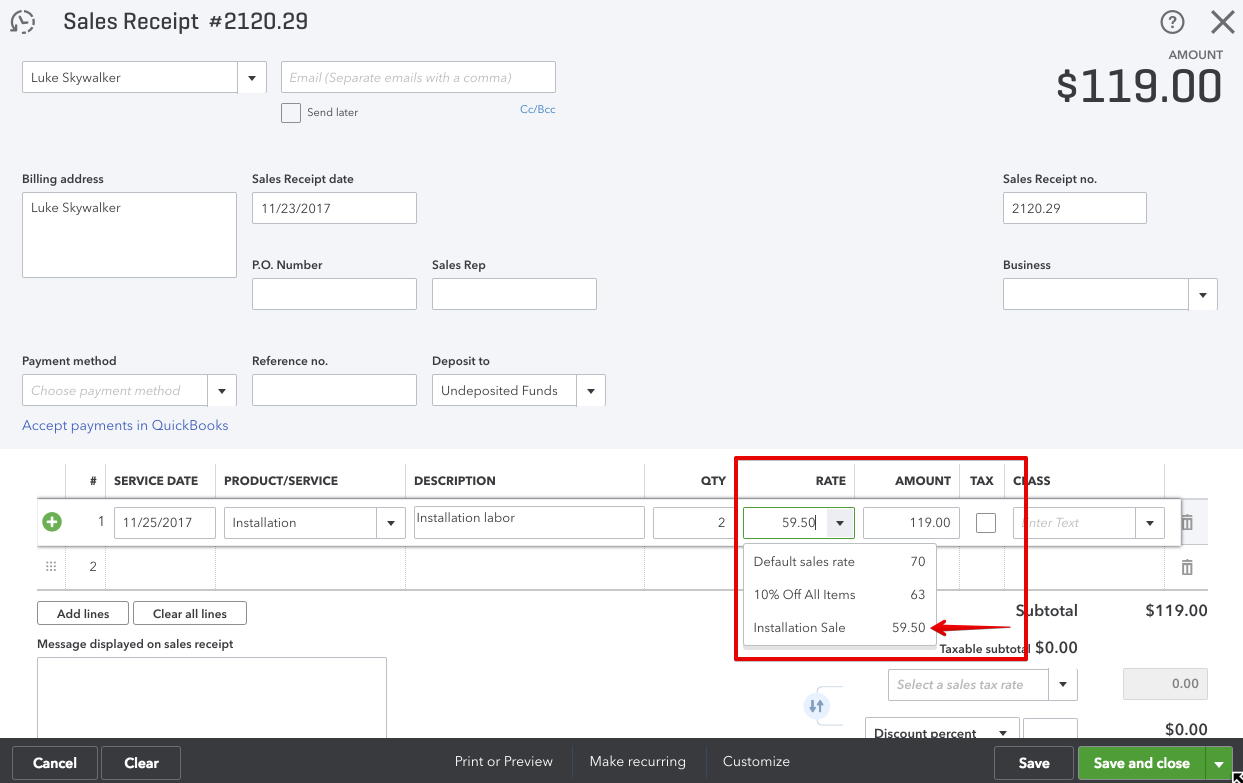
We can also create a new rule when we edit an item from our Products and Services list. In this example, I’m setting up a 15% discount on installation services, that will only run through the weekend.
Here’s how it looks when used on a sales transaction:
One last example of price rules in QuickBooks Online that I want to show is when you have pricing per item, per customer.
We’ll go Gear Icon > Products and Services, then click that drop down on the More button to choose Price Rules. Once you see the list of your price rules in QuickBooks Online, click the green New price rule button.
Here I am setting this up, and instead of choosing to set the price or rate by percentage or fixed rate across all of the items, I chose Select Individually and then adjust each item, per the contract. Because I chose to have this price rule only apply to one customer, it won’t be available when I create sales transactions for other customers.
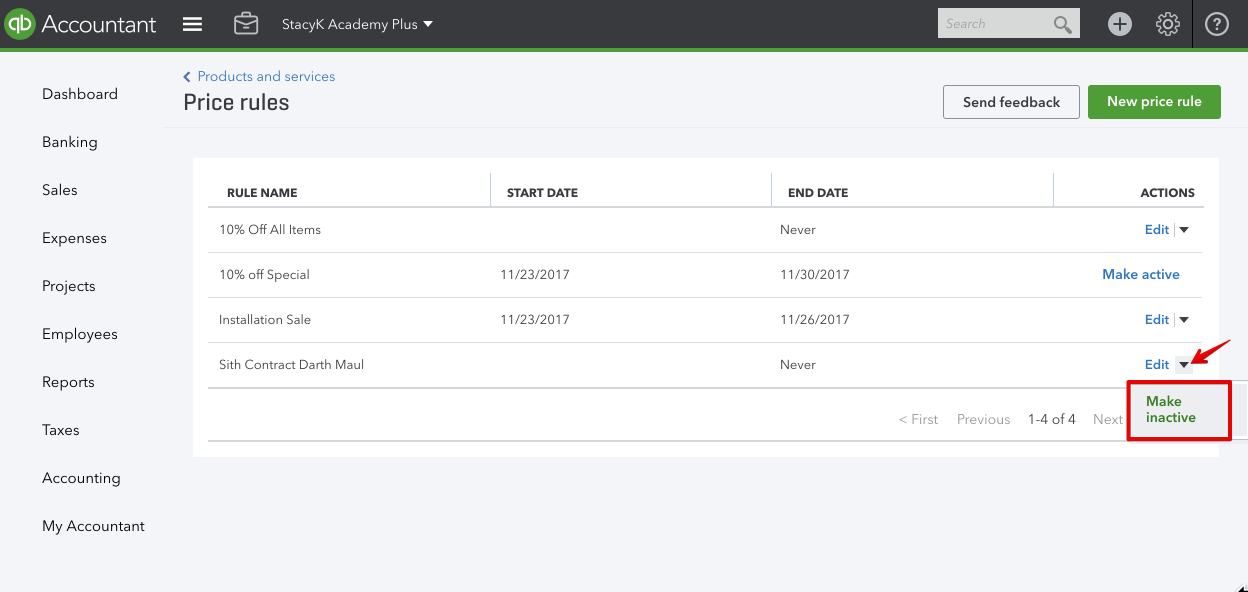
The last thing I want to show is that you can make any of the prices rules in QuickBooks Online inactive, so that they cannot be used when creating Sales Transactions.
If you go back to the same place we just were: our price rules list, we can click on the Edit button in the action column and make any of them inactive. PRO TIP: if you’re logged into your account, here’s a shortcut to the list of price rules in QuickBooks Online: https://qbo.intuit.com/app/pricerules.
So there you have it! A nice overview of how price rules in QuickBooks Online are created and used.