Intuit recently revamped their Invoice with Google Calendar app, so as a long time Google Calendar user, I had to write an article to show how easy it is to set up and use.
Here is your step by step on how to connect the app, then start adding line items to your invoices from Google Calendar.
1. Login to the QBO account to which you’ll be adding the app – MAKE SURE YOU ARE LOGGED IN AS MASTER ADMIN BEFORE ADDING THIS APP
4. If prompted (you may be Master Admin on more than one QBO subscription) select the QBO you to which you want to connect:
5. Click the “Authorize” button:
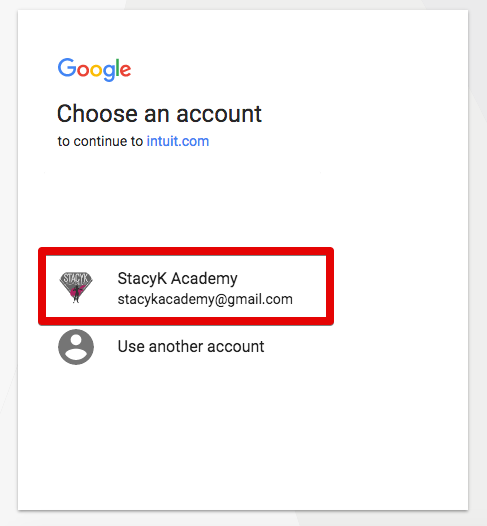
6. Invoice with Google Calendar will then ask you to what Google account you’d like to use (the app only allows you to connect one Google Calendar account at a time):
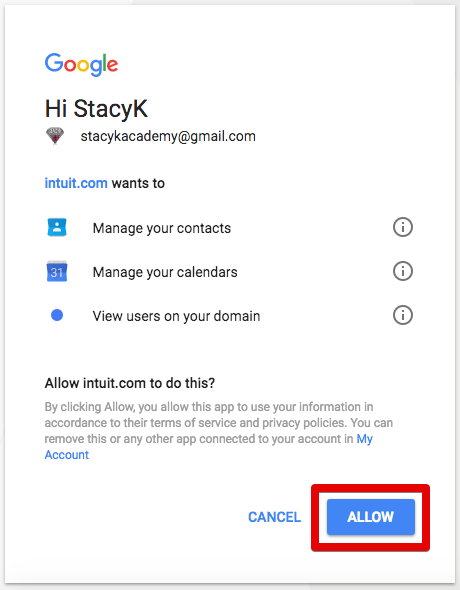
7. Tell Google that Invoice with Google Calendar has permission to access information:
8. Now you’re ready for setup!
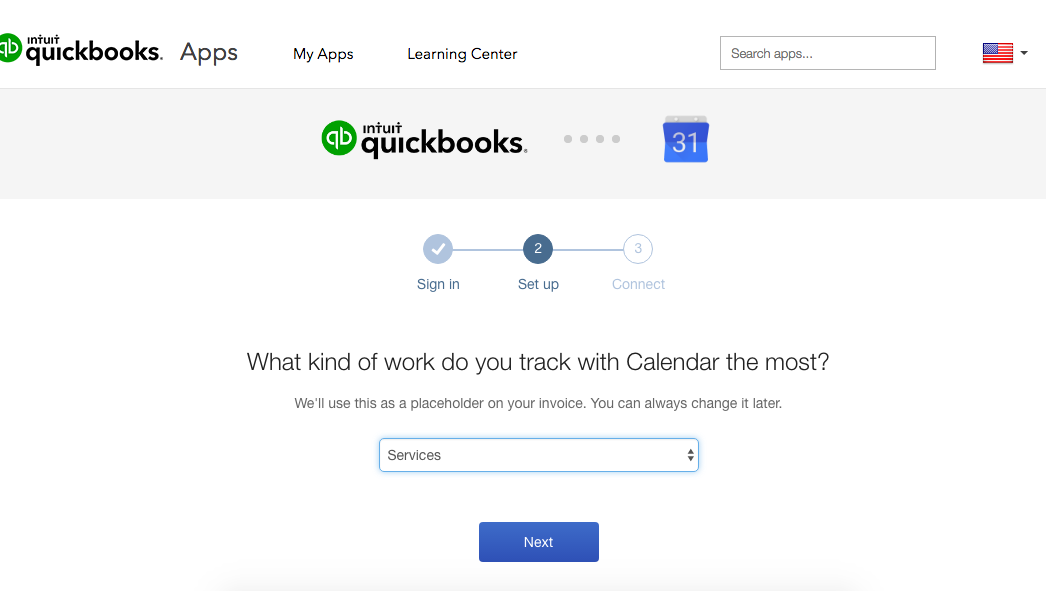
9. You’ll be asked to choose an item from the Product/Services List from your QBO account. For this, I choose a generic services item. One cool thing is that after you select events using Invoice with Google Calendar, you’ll be able to change the item, but the description and time that were imported will not change.
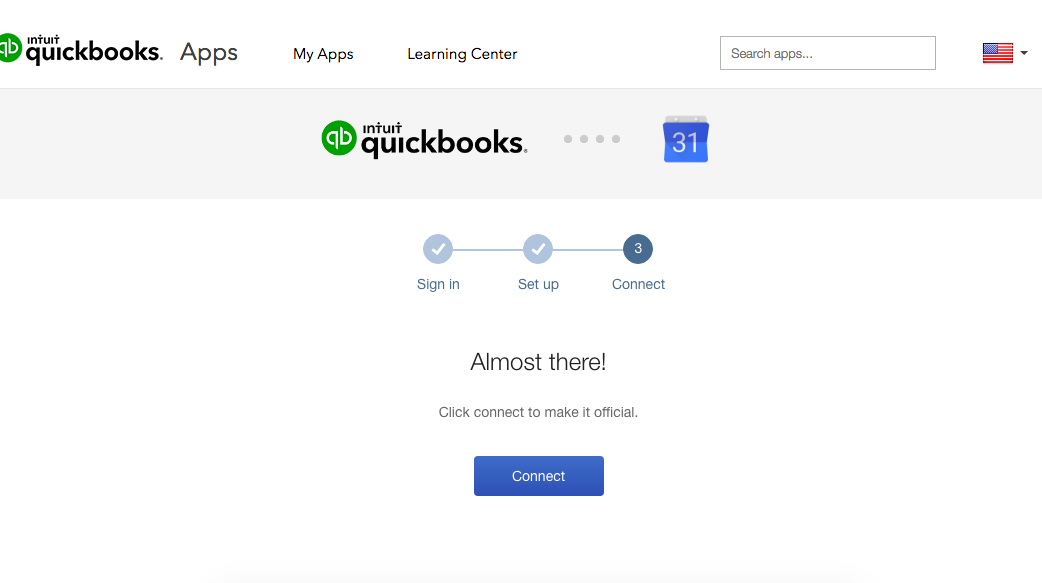
10. You’re almost done! Just click the “Connect” button to complete setup:
11. Invoice with Google Calendar will now ask you to go back into QBO:
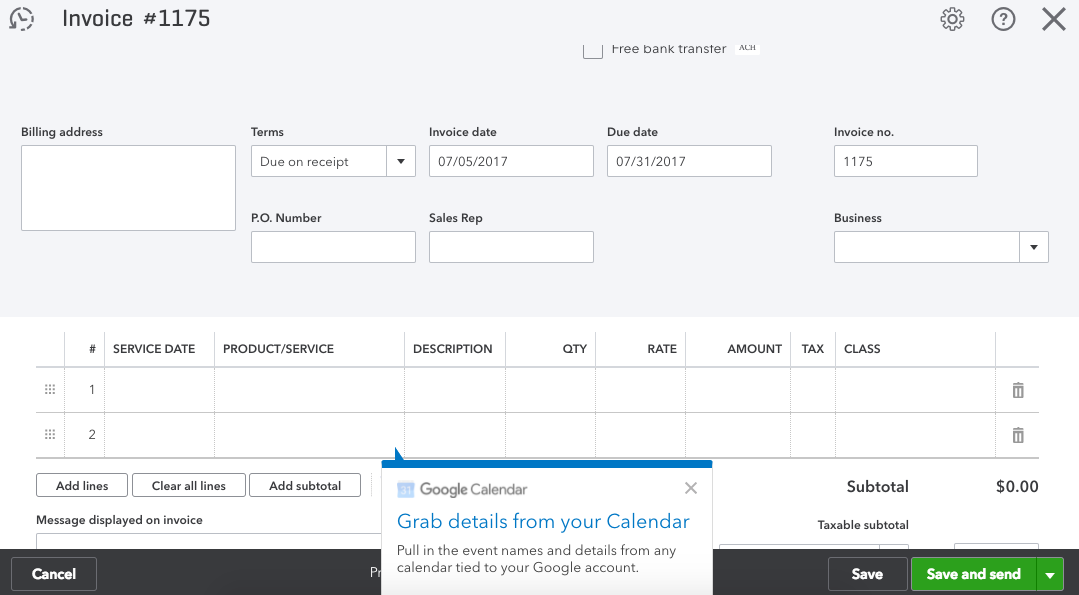
12. Invoice with Google Calendar will take you directly to the create invoice page in QBO and give you a little hint on how to add events:
13. Once you close out the tip, your invoice form will look like this – you’ll click on the Google Calendar icon to add events as line items:
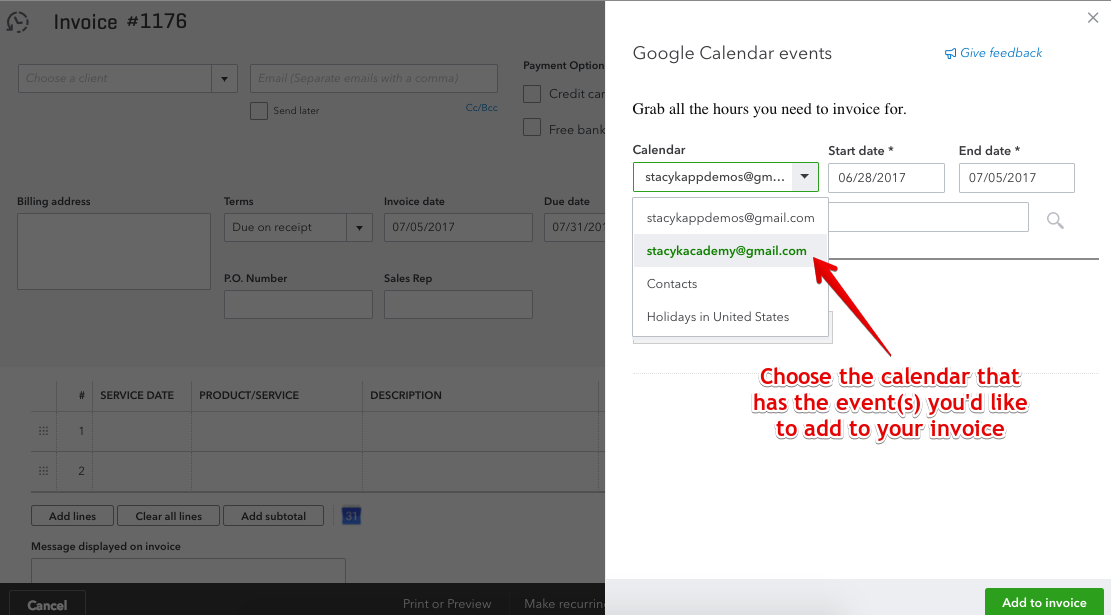
14. After you click the icon, a drawer will open. You’ll see the calendar events connected to the Google account you assigned to the Invoice with Google Calendar. This means that if anyone has shared their calendar with the Google account you’ve connected, you’ll be able to add events from that shared calendar – handy when you’re using GSuite and need to invoice for a team member’s event.
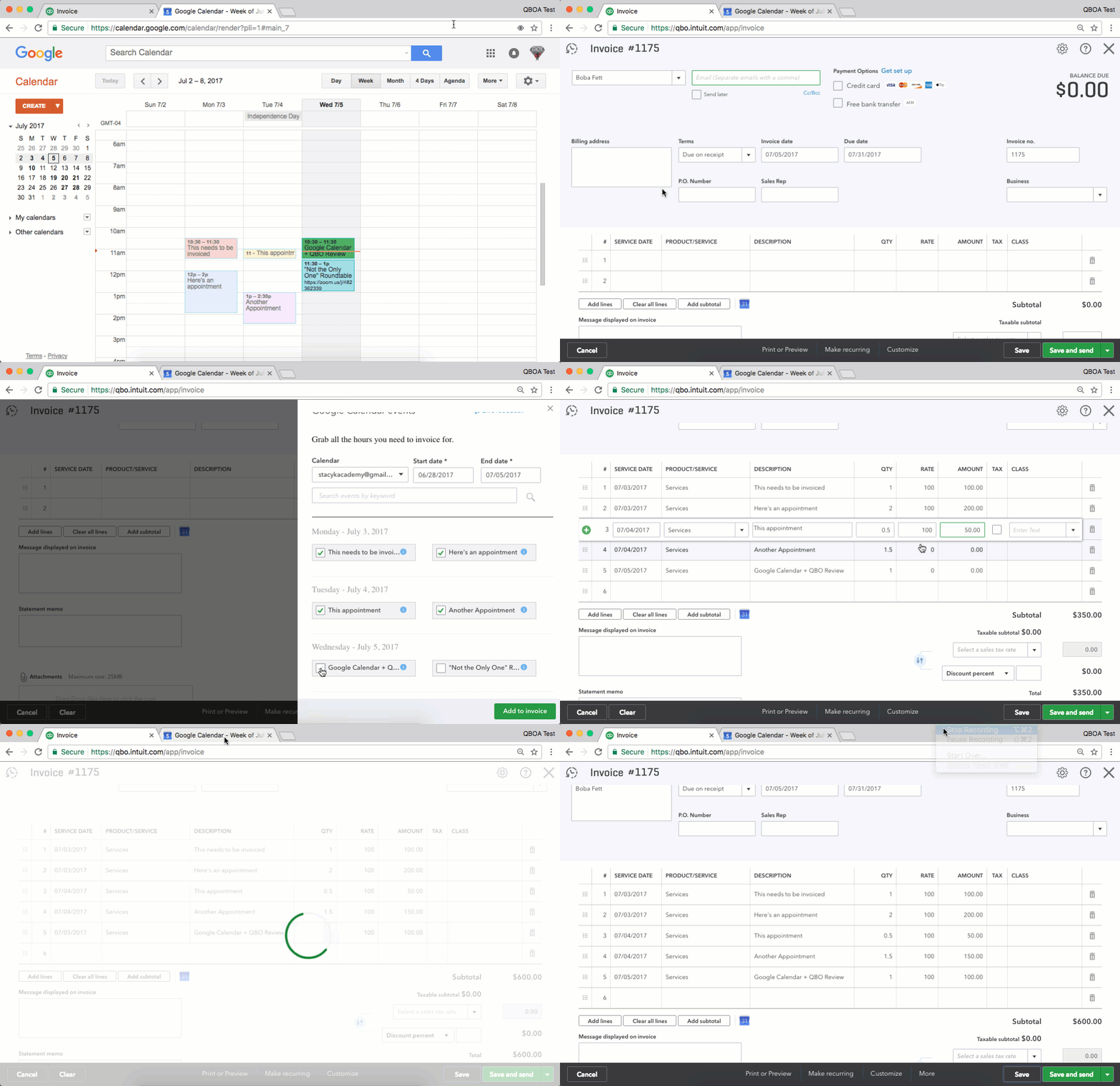
15. Now you can start adding events!
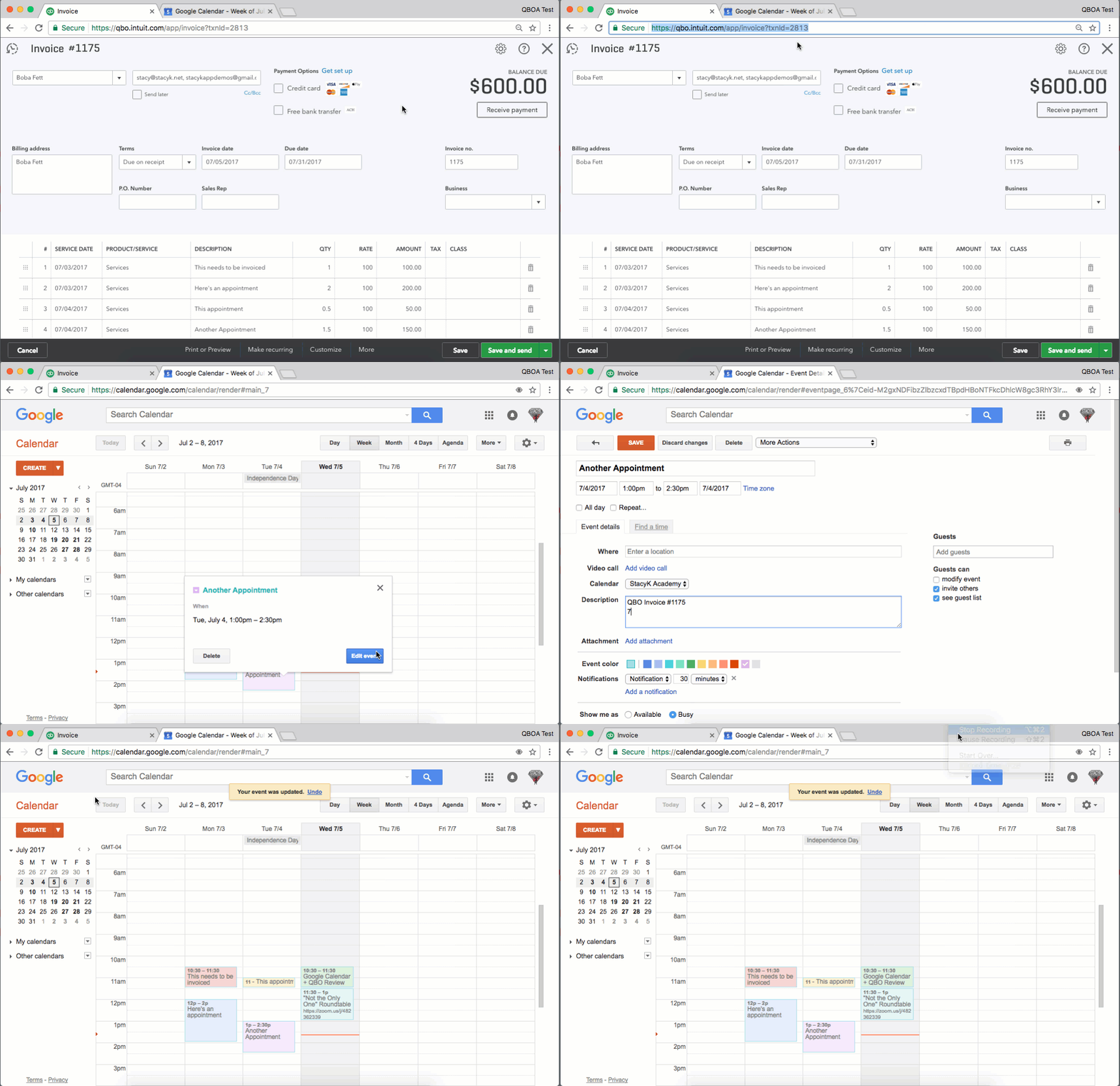
15. Last thing, and this is just a best practice/pro tip. Once you have the invoice created in QBO, you can copy the URL for the invoice, and then paste it into the description of the calendar event. This way, you can always verify that the client/customer has been invoiced for the appointment, and as long as you’re logged into QBO, you can copy/paste that link into a new tab. (Also, or instead of adding the URL: You can also save the invoice as a PDF, then attach to the event in Google Calendar).
Before you leave, I just want to mention a few things about the app.
You cannot add events to line items on Sales Receipts – only invoices.
You also cannot restrict user access to this; any user that can create Invoices can add calendar events.
Calendar events can be added more than once – so you may want to edit the title of the event to include **Invoiced** at the beginning, so that is easily visible when choosing events.
This app does not work with the QBO Mobile apps, but I did test it with Chrome on my ipad and it worked BEAUTIFULLY.
Looking for an easier way to manage accounts receivables? Then you need to check out InvoiceSherpa.com. This app first hit my radar a few years ago, when I met the founder, Shaun Clark, at the California Accounting Show. Hands down, I think InvoiceSherpa.com is the easiest way to manage accounts receivables, and I’ll give you 4 examples.
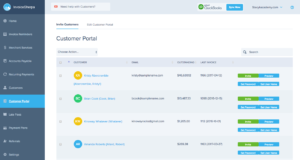
One great feature that I want to point out is the Customer Portal. This is a way for your customers to “view, pay and ask questions about all of their invoices”. One question I get often about QBO is whether customers are able to pay more than one invoice using the QBO Invoice Portal… and the answer is no. InvoiceSherpa.com’s Customer Portal DOES allow for this!
InvoiceSherpa.com’s customer portal
Here are 4 examples of industries that could benefit from using InvoiceSherpa.com to manage accounts receivables.
Consultant – We have a number of clients that do various types of consulting work, and the one thing they all have in common is having to chase down their money. Here’s how they’re using InvoiceSherpa.com to manage accounts receivables.
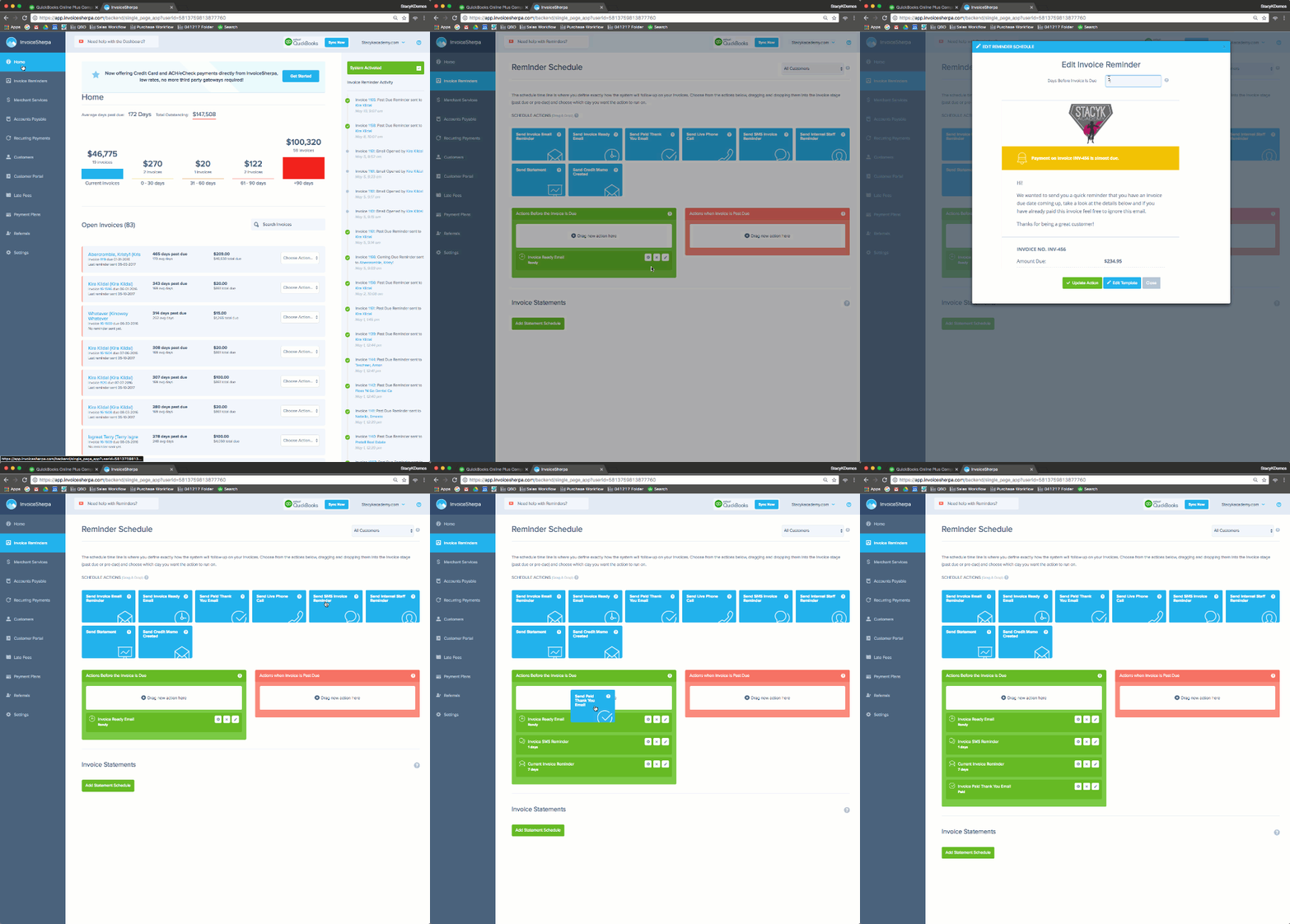
Before the invoice is due, you can let the client know they have an invoice, as well as schedule reminders a few days before it’s due (using email and/or text). You can also send them an automated thank you when they pay!
Use InvoiceSherpa.com to automate how invoices are sent and reminding your customers about upcoming due dates
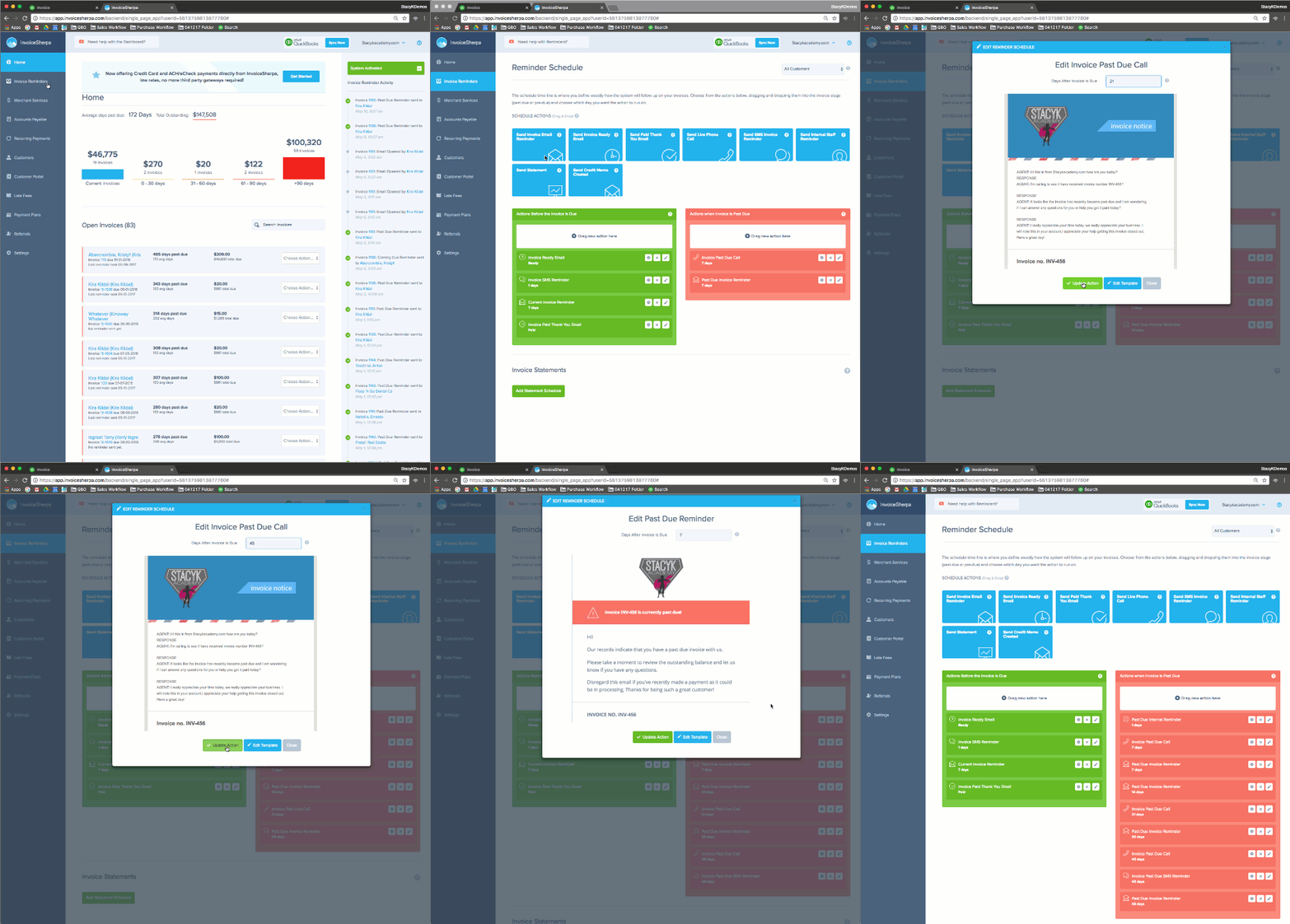
With reminders, you can ALSO gently nudge them (as many times as they need it) if their invoice(s) becomes past due, and even schedule reminder phone calls!
Schedule email or text reminders to clients or internal team members, and schedule reminder phone calls too!
InvoiceSherpa.com makes it easy to manage accounts receivables.
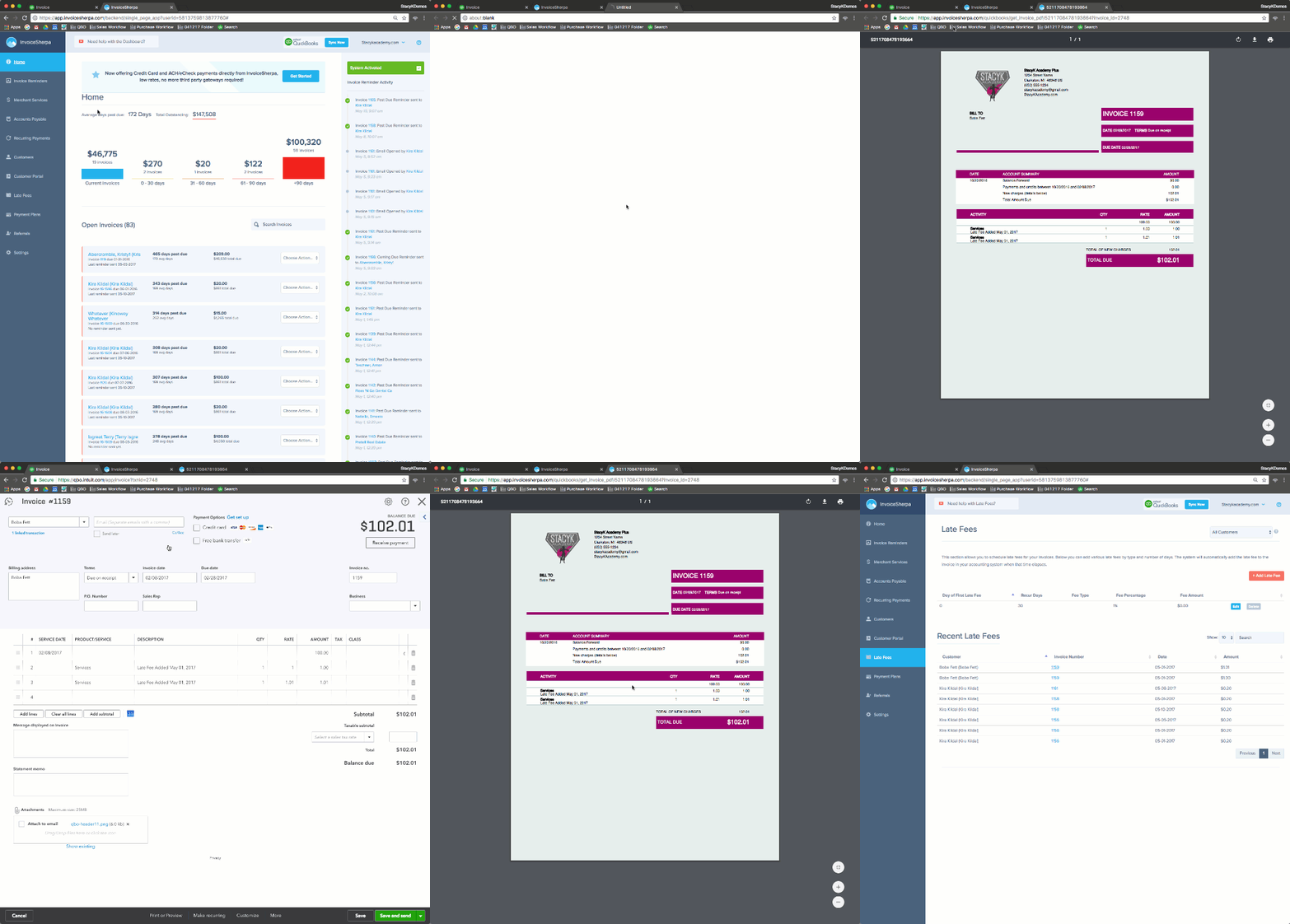
Property Management – Automate late fees. As a former landlord, I could set up recurring sales receipts to charge their debit/credit card or draft their bank account, if my tenants agreed to that. If they didn’t, I could still have their invoice automatically sent. What I couldn’t do, however, was automate any late fees once they 10th of the month rolled around. When using InvoiceSherpa.com to manage accounts receivables, late fees are a snap!
The late fees are calculated based on your criteria (you can have multiple late fees, based on percentage or flat fee), and they’re added to the corresponding invoice:
InvoiceSherpa.com adds late fees to the appropriate invoice in QBO
Home Appraiser – I love the customer portal for this industry; whomever has ordered the appraiser (often an appraisal management company) has one central site in which to login, view and pay all of an appraiser’s invoices.
Customers get an invite, and have one central location to view & pay all of their invoices
Medical Provider – We have a couple of medical provider clients at Kildal Services that don’t accept insurance – they’re cash only, and they often get asked by patients for payment plans. While you can do it in QBO with recurring transactions, it’s SO MUCH EASIER with InvoiceSherpa.com.
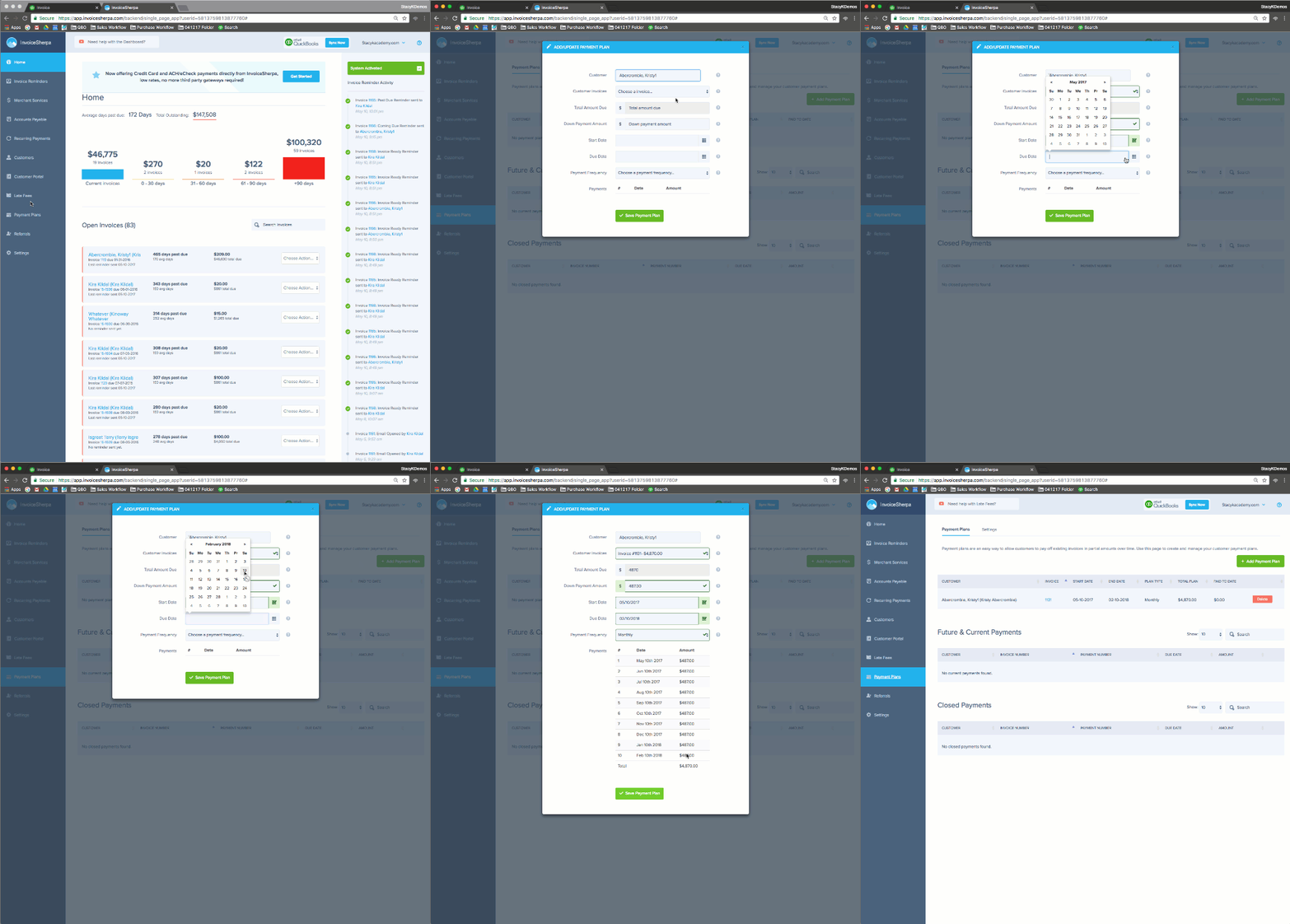
InvoiceSherpa.com helps you manage accounts receivables with easy to create payment plans
So there you have it – 4 great reasons to use InvoiceSherpa.com to manage accounts receivables. To learn more, you can check out the QBOShow.com interview with founder, Shaun Clark here. Better yet, just go to apps.com and give it a try – free for 30 days!
One of my favorite things about QuickBooks Online is the ability to attach documents to transactions, customers & vendors. It’s a great way to keep track of receipts, engagement letters, and W9s. However, there’s a limitation to this: users are not able to attach documents to sales tax transactions or payroll tax payments, made outside of QuickBooks Online Payroll epayments and efilings (ie: Michigan Unemployment payments have to made directly online via the MiWAM site.)
I have a simple work around that allows me to attach efile and epay confirmations, and at the the same time, make it easy to find these transactions via a QBO search.
I use Zero Dollar Transactions to upload Sales/Payroll Tax confirmations in QuickBooks Online.
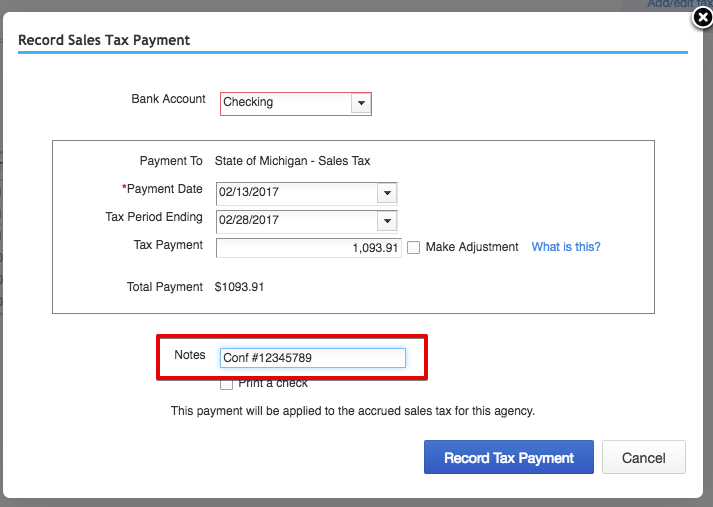
First, let’s look at a Sales Tax payments. Here we are, processing the Sales Tax payment, after clicking on “Sales Tax” from the left nav:
This is where we can enter the confirmation number from our online payment – note, no place to attach a PDF confirmation from the state’s website:
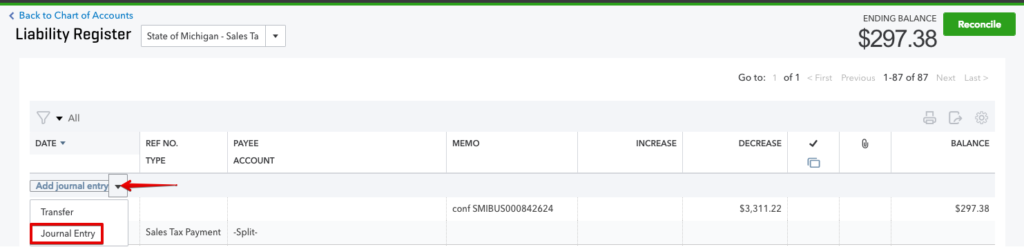
To do that, we need to open the Sales Tax Liability register, from the Chart of Accounts:
From the register, I want to add a new Journal Entry:
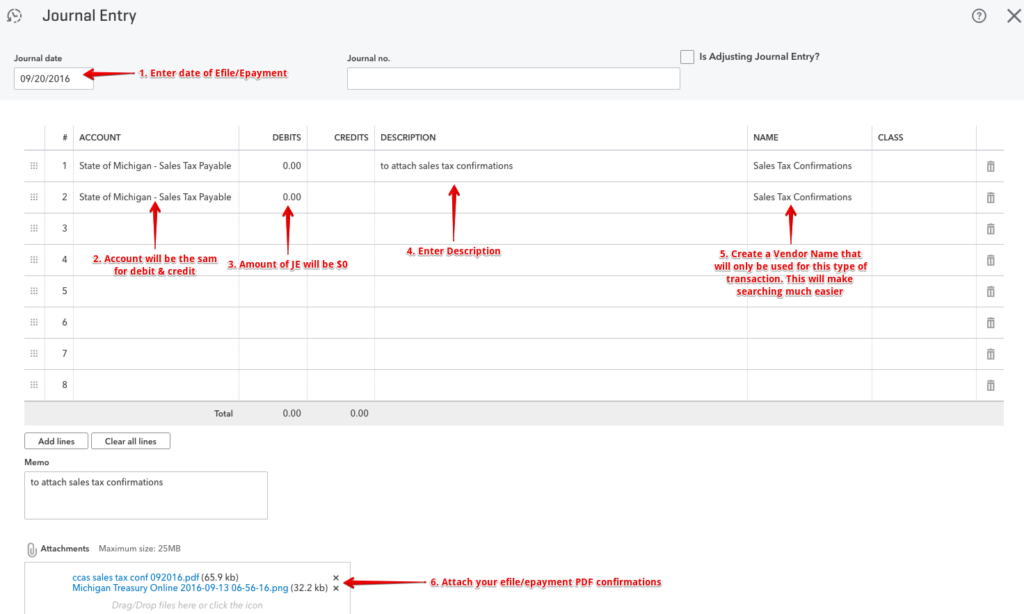
Here’s how to enter the JE:
The date for this JE should be the same as the date you posted the Sales Tax payment in the QBO Sales Tax Center. Now, you can easily search for these transactions, using the Vendor Name:
This process works exactly the same for payroll liabilities, we just use a Vendor Name specific to the type, such as “Michigan WH Confirmations” or “Michigan UIA Confirmations”.
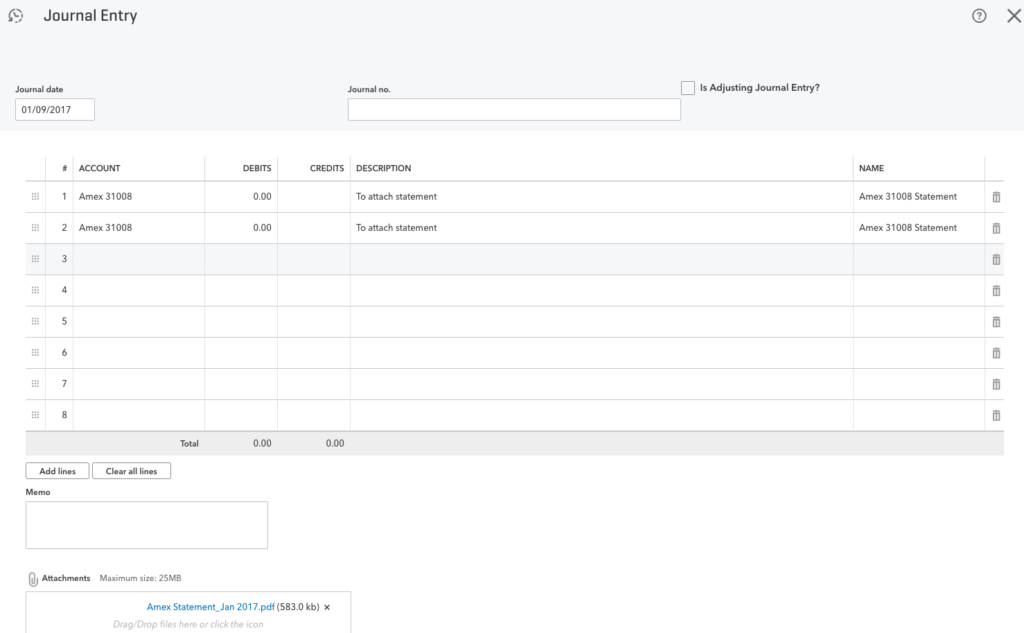
Another way we use the zero dollar transaction is to attached statements to registers.
You can see an example of that below. We reconcile this transaction when we reconcile the account.
And again, assigning a Vendor Name helps us find statements later:
There’s one thing you need to know about apps to know, and I’m not even going to make you read this entire article to learn what it is.
The one thing you need to know about apps to know is that you don’t need to know every single app.
I see similar comments in my Facebook Group, at least once a week: “I don’t know how you keep up with these apps!” or “I don’t have time to learn all of these new apps!”, or sometimes it’s about the pressure to keep track of them all. I want to tell you: you don’t have to keep up or learn them all. You especially shouldn’t feel pressure to keep track of them!
Yes, it’s a great idea to either decide that you’re accounting or consulting practice is going to support a specific group of apps to use with your clients, or do be familiar enough with a variety of them in order to make the best recommendation for a specific client’s needs.
The one thing you need to know about apps isn’t that you should know every one of them that’s out there. I think what’s more important is knowing how to:
Find new apps. Whether you’re checking apps.com or you have a Google alert set for “new business apps” doesn’t matter. The fact is, you have a good idea of how to find an app when you need one
Read reviews. Google that shit. Seriously, the first thing I do when I find out about a new app is head to The Googler and lookforreviews. Read as many as you can find. If you belong to an online forum or group, ask the other members. Or join one so you can ask.
Test new apps. If you do find a new app, you should have an idea of how to test them. If you’re looking for something to connect with your accounting software, I have a course that I wrote and presented a while back on how to do just this.
The one thing you need to know about apps is that you shouldn’t be an expert in all of them… expertise takes time, and you may not have that time to take away from your business.
The one thing you need to know about apps is that you don’t have to be an expert in all of them.
You should know enough about apps to be able to explain what they do and how your business or your clients’ business will benefit. Example: I love Knowify, but am nowhere near an expert – totally at a beginner level – but I can speak to what it does, I know what clients for which it might be a good fit; I know that it has a great support and they will help with on boarding.
For me finding new apps is a hobby. I happen to really enjoy finding a new app, taking it for a spin and seeing what it can do. It’s even more fun if it’s fantastic and amazing and I love it.
There’s enough pressure out there for us, as business owners, without feeling like you’re behind on something just because you haven’t heard about some new business app.
Intuit is doing a second Firm of the Future contest this year – and it’s gone global! As they did in 2015, they will be announcing the winner again at QBCon2016.com.
I just entered my submission for this year’s contest! I knew they weren’t taking videos (just images) so I put on my #TeamQBO tshirt, dragged my husband, daughter, and the giant, 5′ beach ball that we have out to our backyard to help me get some video that I could turn into a GIF.
I didn’t find out until I got to the upload page, but the contest only accepts JPEGs, so I couldn’t use my GIF.
Because I couldn’t let the beach ball not get it’s 15 minutes of fame, I present to you: My #QBFirmoftheFuture GIF:
Last year, I made it to the top 20 – this was my video submission:
Don’t forget to enter! You have until July 31, so get moving!