Woody Adams and I have teamed up to bring you the QBO TOP 40 COUNTDOWN (to #QBConnect)
We’ve compiled a list of 40 features, tips and tricks that will help you work better, faster smarter. Keep in mind, there’s no particular order here we both just added to the list until we hit 40 and QuickBooks Connect!
Report Customizations
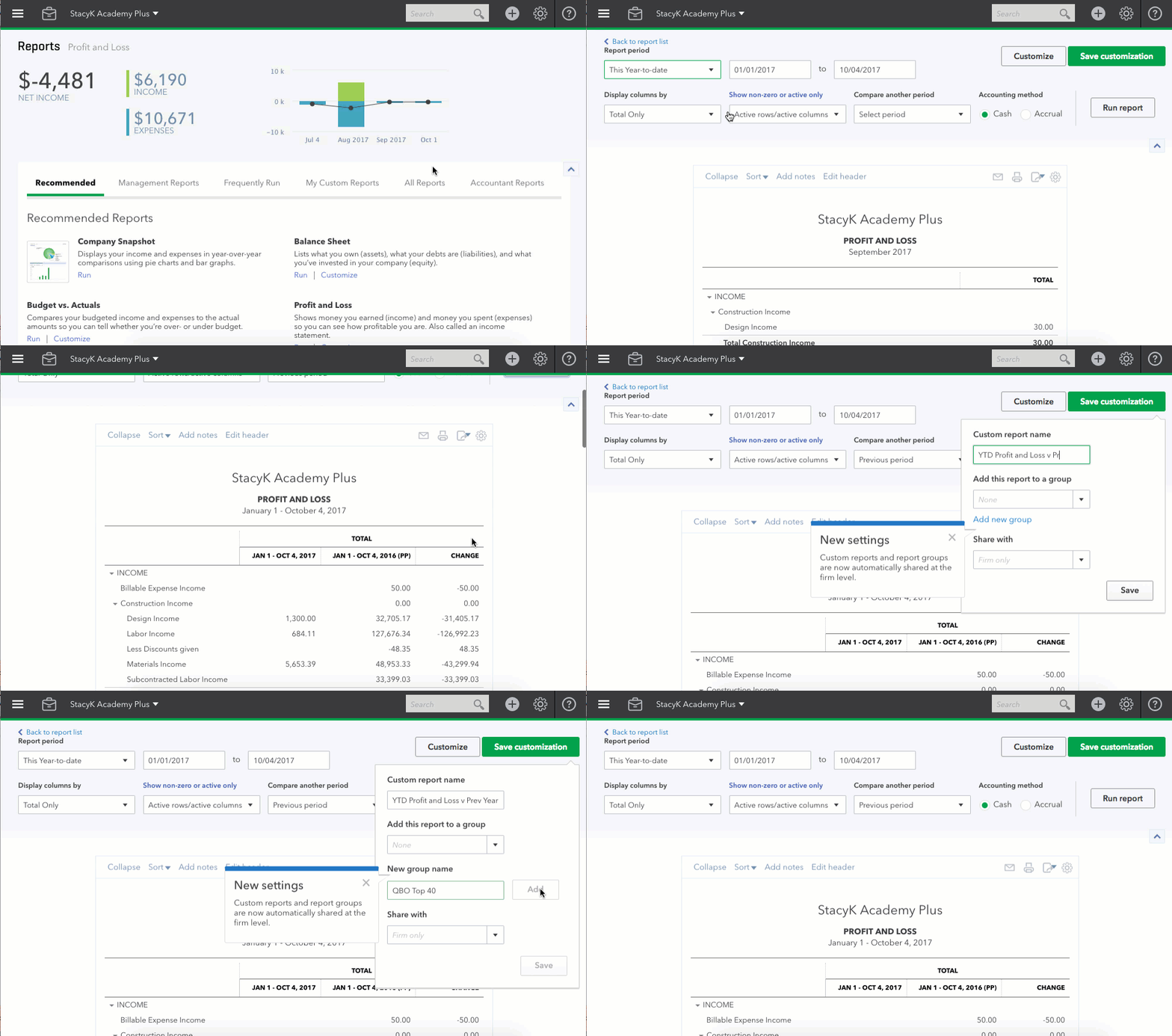
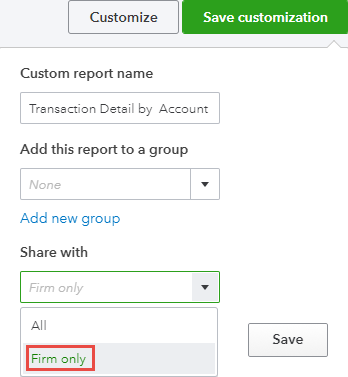
Can’t find the report you want? Open a similar report, customize it to give you the data the way you want it, then save the customizations.
You can find all of these reports under the My Custom Reports header of the Report Center
Woody Adams and I have teamed up to bring you the QBO TOP 40 COUNTDOWN (to #QBConnect)
We’ve compiled a list of 40 features, tips and tricks that will help you work better, faster smarter. Keep in mind, there’s no particular order here we both just added to the list until we hit 40 and QuickBooks Connect!
Tabbed browsing for reports
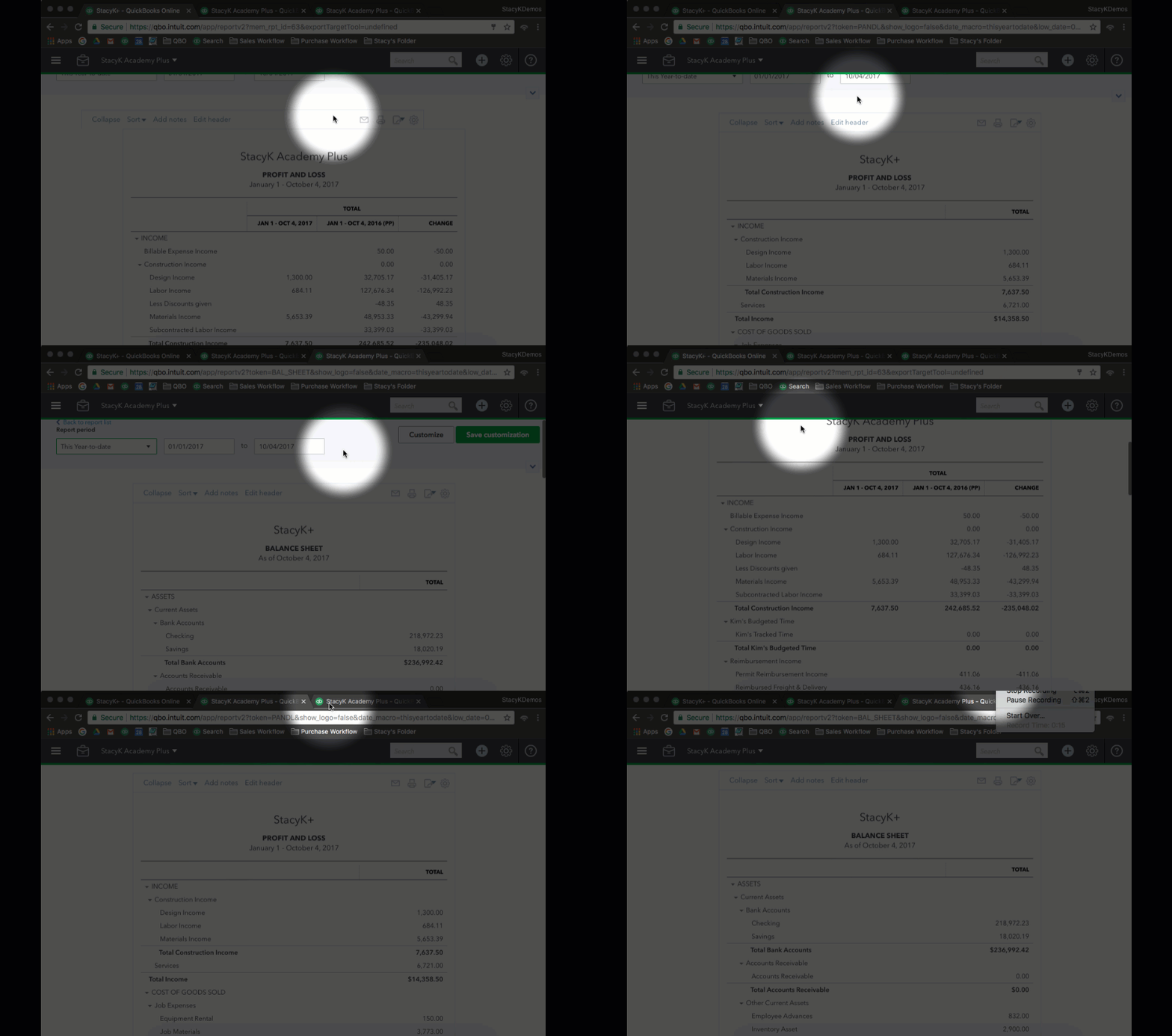
While QuickBooks Online doesn’t have an Open Windows List like QBDT, you can have as many tabs open as you need.
Below, you can see how I’m moving from tab to tab to view reports.
Woody Adams and I have teamed up to bring you the QBO TOP 40 COUNTDOWN (to #QBConnect)
We’ve compiled a list of 40 features, tips and tricks that will help you work better, faster smarter. Keep in mind, there’s no particular order here we both just added to the list until we hit 40 and QuickBooks Connect!
Bookmarks
You can favorite your oft-used QuickBooks Online Forms and lists in top icon bar to be ONE click away from most common QuickBooks Online Features…
Woody Adams and I have teamed up to bring you the QBO TOP 40 COUNTDOWN (to #QBConnect)
We’ve compiled a list of 40 features, tips and tricks that will help you work better, faster smarter. Keep in mind, there’s no particular order here we both just added to the list until we hit 40 and QuickBooks Connect!
QuickBooks Online Accountant: Team Visibility
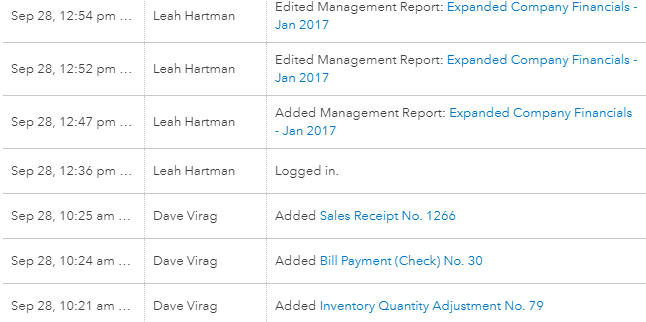
In the Audit Log of client file, QuickBooks Online Accountant team members can now see actual staff name, while your client only sees firm name. Better visibility for firm! As well, you can save report customizations to Firm Only!
Improvements to Items and Inventory in QBO – by Woody Adams
Some are reading that title and thinking; “wait, inventory is only in QBO Plus, what is going on here?” True that. However, this past year we have enhanced product & service functionality even at the Essentials level. Essentials has time tracking now and time tracking only users and settings, what? Yup. But this article regards item and inventory improvements we had this year, and I will not be detailing dates of such changes as my memory is real suspect. And when I say “items” I mean products & services, which is a minor pet peeve I have with QBO in general. I just like “item or items”, way easier to mutter. Ha! “Mutter”. Nobody says that anymore…
Inventory Improvements—Quantity Adjustment, Starting Value Adjustment, Low Stock/Out of Stock/Reorder Point
Other Product & Service Improvements—Categories, Bundles, Sku
In order to really align QBO Plus with QB Pro, we had to allow the ability to make quantity and value adjustments. And by adjustment, I don’t mean editing the P&S and changing the quantity on the fly. That was never a good idea, and you couldn’t change the quantity for a prior date either, it would have to be as of today at least, and that was rather annoying…So we added two adjustment related features, one for quantity and the other for starting value, which I have an important qualification to make about when I get to it.
When I create a new inventory product in QBO Plus, I NEVER enter the current QOH in the setup window. Why? It will hit Opening Balance Equity. Please, don’t do that. Go enter a bill, write a check, or a credit card expense, any vendor posting transaction to “receive” the items into inventory. We really need to remove all those open balance fields on list elements in QBO, period…
But what if you want to change the current QOH of an inventory part? On the P&s list, click the arrow next to Edit in Action column, then click on Adjust quantity, seen screenshot below. In the shot, check out the other options now…the last 3 in list are what is really critically new IMHO. The cool thing about adjusting quantity is it is an actual transaction type. Oh, editing the item record before the change QOH on fly did qualify as a QTY adjustment and would show on reports as its own transaction type too, but I feel QTY adjustment has finally had its day. 2nd screenshot below is the actual Inventory Quantity Adjustment window. I can choose the adjustment account, as QBO will default to Inventory Shrinkage, an account QBO auto creates in your COA. You can choose another based on your needs. I suggest keeping it to a COGS type account however and I am sure you accountant will agree. Note I can even tag a class, location, Memo to the adjustment. In my example below, I reflect a new QOH for Ball of Yarn of 150, a change of 50, which debits inventory asset and credits inventory shrinkage.
If you are not sure the T-chart, don’t click Save & Close, instead click Save and then click More tab/Transaction Journal.
Now, this adjustment transaction will show up on related reports, including the Inventory Valuation Detail report. Note also, Starting Value in the screenshot below. These will have blue links underneath them in the report that will take you to the adjustment. Starting value is like a Value Adjustment in QB Pro, but not really. Why not really? It is not meant as a periodic value adjustment maneuver. It is meant to be a onetime event, like Woody entered the wrong cost or value for the item when setting it up so I need to go back and change its Starting Value kind of adjustment. I can also get to this value adjustment from the P&S list, the arrow next to Edit in Action column. Or from a couple reports like the one below.
Get a little popup warning too when you go to change Starting Value of an inventory part…
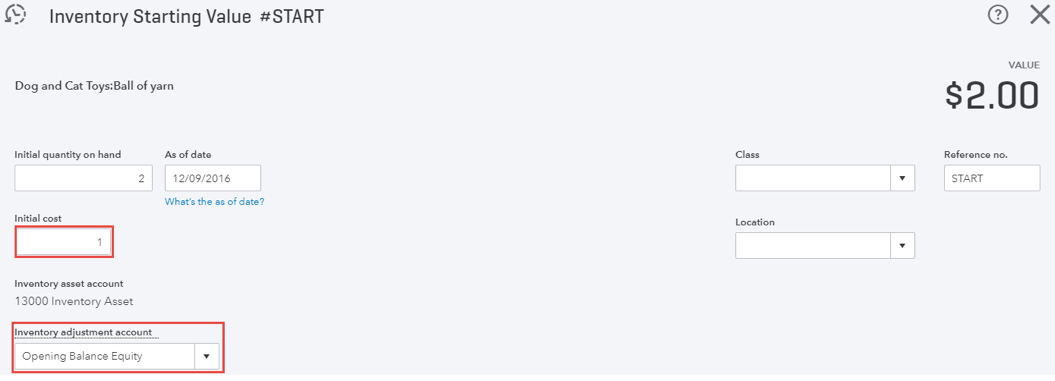
From screenshot below, you want to impact the Initial cost field, make the value change there. And watch the adjustment account! It defaults to OBE, so make sure to change it appropriately before you hit Save & Close. Further below, I show a screenshot of me changing the Initial Cost from 1.00 to 1.50 and I also chose an proper COGs adjustment account.
The Inventory Starting value adj will also show up in Search field when you left click it, as well as related reports…You all know re the Search field right? Click in there to see more recent transactions entered!
Above are the main enhancements impacting Inventory in QBO Plus. The remainder of the article will focus on enhancements added to QBO Essentials and Plus but not specifically related to inventory. For example, a Bundle item might include inventory parts but I don’t need Plus to create Bundle items…etc.
Used to be, QBO had a gap vs. Pro, no group items. We added that recently to Essentials and Plus, and we call it Bundle. The Bundle item is totally a group item. I cannot think of a difference except that QBD supports Other charge items that can have a %, not just an amount. I know, I know, it’s the little things…How is that file transfer working out for you? That is loads of fun too. How important is that lack of other charge item type now in QBO? Exactly, not nearly as critical as you once thought…
The Bundle—Go to your P&S list, however you like to get there, click on New tab in upper right and you will see Bundle as a 4th type option. Oh, forgot to mention…While we still call items in QBO “Products & Services”, we decided to differentiate a bit better between the type of P&S you are creating. Inventory, Non-inventory, Service and Bundle. If you don’t see Bundle, you are in QBO Simple Start. Or Self-Employed, LOL. Well, QBSE has no P&S list but still, that is funny…need to take a drink…
Back…Oh, I can also now filter my P&S list by type to help me find stuff easier. Forget when we improved the filtering but it really helps me daily. Wait, what are Categories and how did I group my P&S list so visually impressive? I will get to that.
A while back I created a Bundle item called Groom & Board, see in screenshot below. Key things to point out: You can name it, add a Sku (will get to that later), sales description, then add all the P&S that are part of the bundle aka group item. Bundle is NOT a build assembly. There sales price and any costs will be determined by the Bundle’s component parts. I cannot set a price or cost different from the price/cost of the items in the bundle. And like a Group item in QBD, I can chose to “Display bundle components when printing or sending transactions” or not. So I can see all the detail on the screen but my customer will only see Groom & Board and the price. To me, this is the most important part.
When on a sales form…
Here is the transaction journal of the above entry…
Let’s end with Categories, which really represents QBO’s new way to support sub-items. If you convert a QBD file to QBO that has sub-items, you will see an option to convert the subs into Categories. Really helps in filtering the P&S list, pick correct products on a sales form and even filter reports. Enhances visibility, and for me, really it is about the P&S list and a clearer understanding and grouping.
In All Lists under Gear icon, you will see Product Categories. You can also manage your categories in the P&S list itself.
Category is just a name. Add some, then you can assign your products and services to a Category. Basically I am creating Item groups. I can then filter the P&S list by a specific category…like Dog Attire below, and focus in on those products.
I often like to filter the list by Uncategorized so I can batch assign products to their respective Cats…In the screenshot below, I am batch assigning several services to the Treatment category…
Now, when I filter the P&S by the Treatments category, I can see them all grouped…
Categories also infiltrates the P&S list dropdown on sales forms, so I can make sure I am choosing the correct item, and I can even quick-type based on Category to find the products in that group, etc…That has got to help with data entry. See screenshot below…
Well, that just about…..WAIT! Stock status and re-order points, wow, the list just keeps going on and on…ok then we be done…
See above. I have filtered the P&S list by my Dog and Cat toy category as these are super popular sales items, daily. My concern is the Red rubber ball. At top of list is the Low Stock alert and the Out of Stock alert. I know I need to purchase some red rubber balls, the reorder point being 3, which is mildly humorous. I need to change that to a more reasonable point. And 12 of my items are getting low. So I might as well purchase those too. and I can purchase in batch assuming the low and out of stock items have the same vendor…Before I do that, see how Reorder point is used when I edit the product record…I updated the point to 50. See below how I can batch purchase too…
Note: Reorder points and stock level tracking is supported for inventory parts ONLY…
Now the QTY I need to order is not auto-filled on the PO based on the Record point of the product. It defaults to 1, so I still need to enter the QTY I want to order. Important to note, but still, nice to see all items I need to purchase from same vendor on one PO…I hover over the QTY field and I get a popup for QOH and Reorder point, then I just click into field and enter amount…
The hovering popup happens on sales forms too, and while not tracking “availability to promise” to a customer, it does give me visibility to current QOH. As there is no Sales Order tracking at this time in QBO, I am restricted like a QB Pro user is, by the current quantity on hand of an item. Sales receipt is the shot below…
Oh, below is a shot of me filtering a report by Category…
Remember, you can now add Sku info at the product level and see that column on sales forms, reports and the product and services list. Though I cannot change the Sku label name, I could use this field as a “custom field” at the item level. I mean Sku can mean anything, right?
The below permissions are set in the Firm Administration and Books tab in the team member’s record. You access this page by clicking on Team tab in QBOA (assuming you have access), then click on team member name in list you want to affect.. Regardless of the below QBOA team member access level settings, team members are Company Admins on any QBO client file to which they have access.
Basic Access Level Settings—This team member is completely Basic access level. All they see is the Clients and ProAdvisor tabs in the firm QBOA. Essentially, this is for the staff that you only want to access the clients you want them to access, and nothing else. Absolutely NO firm admin duties allowed. There is only one Basic option, and it is the mode in the screenshot below. If you allow access to any other field, Access mode turns to Custom:
By changing anything in the access column drop downs, the type of access changes to “Custom”
There are different options for QBOA Team member permissions for your firm’s books and client access
Custom Access Level Setting—Manage your clients
The first Custom access level is for the Basic staff team member needing the ability to Add a QBO client sub to the firm QBOA. You choose Yes for Manage your clients setting. As you can see in the next picture below, Firm Admin and Firm Books are still completely restricted, but I have the ability to allow a team member to add a QBO sub. The team member will see nothing in QBOA but the Clients they have access to, ProAdvsor tab and the Add Client tab. While the team member can add the QBO sub to Wholesale Billing, he or she cannot edit, view, or manage Wholesale billing settings at all. Nor can this team member move existing clients under Wholesale. As well, this team member cannot assign other team members to the newly added QBO sub. Net, net: I can give a QBOA team member the ability to add a QBO sub, add it to wholesale, work on their appropriate assigned clients, and get certified in QBO as a free ProAdvisor.
This QBOA team member has NO other firm admin abilities:
This QBOA team member will have no access to the firms books, aka “YOUR BOOKS”
Custom Access Level Settings—The Rest
Note: I decided not to test any View Only settings per access level, as why would I set a team member to view something if I didn’t want them to have access to modify it? Also, I kept the Manage your clients set to Yes for all of the following, which you may or may not want to do depending on need. We just broke down Manage your clients so hopefully this does not cause any confusion.
Firm Information Edit, All other settings None, Manage your clients Yes—No differences noted. As far as I can tell in my testing, this minor setting change makes no difference to the above Basic team member with Manage your clients set to Yes.
Firm Information Edit, Firm Users Edit, Manage your clients Yes—The team member now has some firm administrative access. Upon giving team member Edit access to Firm Users, team member can now see Clients they have access to, Team tab, ProAdvisor tab, Add Client (remember, Manage your clients set to Yes), and Your Books. Team member can add staff to the team and edit any staff member save for the QBOA Master admin. While the team member sees Your Books, they have no access to it. All Your Books pages throw a “We’re Sorry warning.”
This QBOA team member still has no access to manage wholesale billing or see the firm credit card, nor can they move existing clients not under Wholesale to Wholesale billing:
This QBOA team member won’t be able to edit Wholesale Billing information.
Firm information Edit, Firm users Edit, Subscriptions and billing Edit, Manage your clients Yes—All same abilities as the above setting, with the addition to Edit billing information for Wholesale Billing, aka, access and change the firm credit card. This team member can still NOT move existing QBO clients not under Wholesale to Wholesale, nor manage any wholesale billing duties that have to do with adding payroll, upgrading Essentials to Plus, cancelling payroll or removing a client from Wholesale billing.
This QBOA team member can edit Wholesale Billing settings.
Firm Administration Access Edit for all, Your Firm Books Customers and A/R Yes, Manage your clients Yes—The below setting allows the team member to access all customer and sales related forms and reports in the Your Books file, plus the same permissions allowed in the above setting. The team member will have NO access to chart of accounts, registers, online banking, vendor/expense related forms and reports, attachments, budgeting, bank reconciliation or payroll.
This QBOA team member does have access to time forms and reports. NO access to financial reports.
Custom access for this QBOA team member.
Full Access Level Setting—This team member has access to all areas and tasks in QBOA, as well as all the permissions allowed in the settings above. The only move this team member cannot make is remove the Master admin of QBOA. This team member has access to all of the Your Books file, including Payroll, registers, banking and financial reports. The Full team member is basically a Company admin of QBOA.
Only the Master Admin is greater than Company Admin, but not by much.